Concurrent Task Coding
Introduction
Codeit allows multiple users to work on the same task at the same time.
For example, a supervisor might want to access a task to make client codeframe changes while coders are actively coding.
Other times, it is necessary for multiple people to work on the same task at the same time so that coding can be completed quickly.
This page explains the options available in Codeit for concurrent Task coding.
Default Behaviour
When a user enters a task via the Start Coding Dialog, by default all records for the selected task and wave will be exclusively "locked" by ,or "checked out" to, that user for the duration of their session.
This behaviour is intentional and designed to prevent multiple people from coding the exact same workloads at the same time.
If two people are working on the same items at the same time it may be confusing and error prone as well as being an inefficient duplication of effort.
Alternative Behaviour
There are four ways in which this default behaviour can be adjusted:
| Method | Description |
|---|---|
| Filters | Use a more selective criteria to limit the number of workloads in scope for a session |
| Paged / Percentage Selection | Request a subset of workloads, rather than locking all items |
| Locked Workloads | Include workloads even if they are locked to another user |
| Sequential Coding | Work through workloads sequentially, issuing small batches of records to sessions on demand |
Filters
The Start Coding Dialog allows a user to refine their selection of coding records, rather than simply loading all records for a task and wave.
For example, you may select records for a specific language, or just select uncoded items.
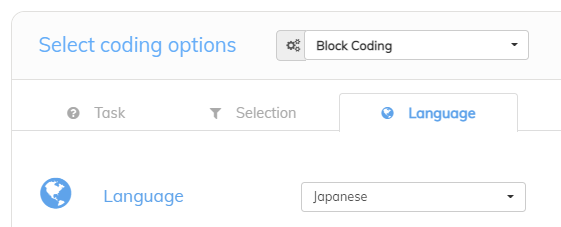
Any workloads that lie outside this selection criteria remain unlocked and available to other users.
Paged Records
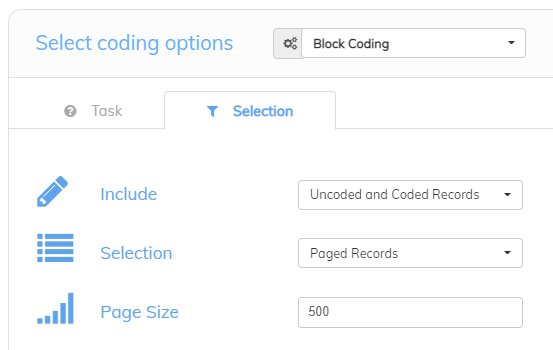
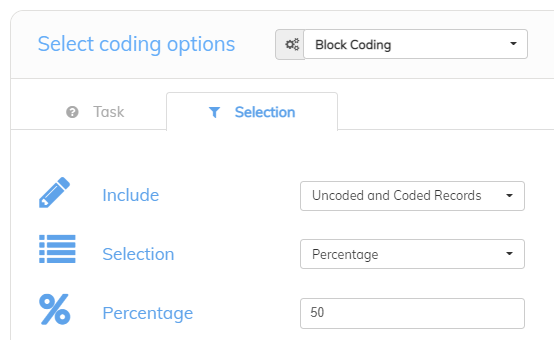
The Start Coding Dialog also allows you to select a partial set of workloads by specifying a number of records.
This may be an absolute number of workloads - "Paged Records":
Alternatively, a selection may be specified as a percentage of the workloads available (after any filters have been applied):
Locked Workloads
This behaviour can be overridden, by toggling on the "Include Locked Workloads" option:
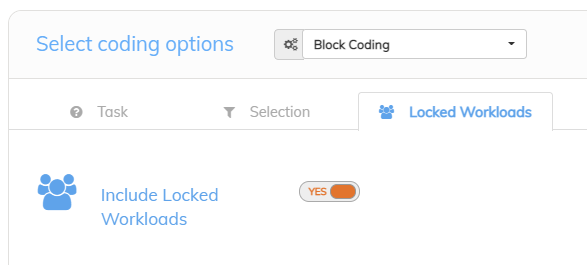
Note: The "Locked Workloads" tab is not displayed by default. In order to enable this for a company (or sub-company) you must switch on the "Show Locked Workloads Tab" company setting. See this page for more details.
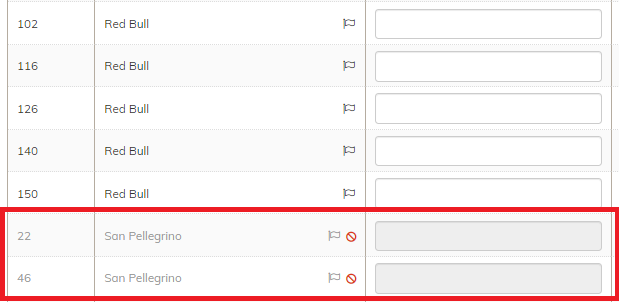
To override this "Read Only" behaviour, so records can be coded even if they are locked to another user, it is necessary to toggle the "Locked Workloads are Editable" switch in the Start Coding Dialog.
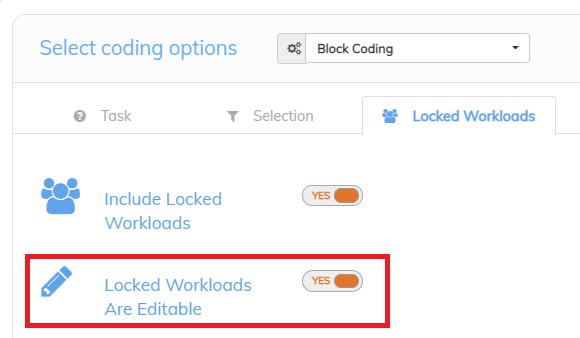
Note: The "Locked Workloads are Editable" switch is not displayed by default. In order to enable this for a company (or sub-company) you must switch on the "Show Editable Locked Workloads Switch" company setting. See this page for more details.
Sequential Coding
The Start Coding Dialog allows users to access Codeit's "Sequential Coding" mode. This mode allows coders to view and code one workload at a time.
In this mode, workloads are "locked" to a given session "on demand" in batches of 10. This allows very large numbers of coders to work on longer verbatims concurrently, without specifying and locking a fixed set of workloads upfront.