Using the 'Start Coding' dialog
Introduction
The Start Coding dialog is a key part of the software which is your main point of entry to interact with tasks in a variety of different ways. This article aims to outline the features of the dialog to help you understand how it all works.
Using the Start Coding dialog
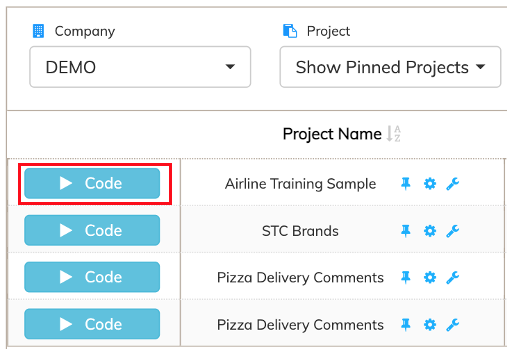
To access the Start Coding dialog, simply click the 'Code' button for any item in the list of available projects on the Project Dashboard:
Main screen
1. Mode
Here you can pick how you want to interact with a particular task from a range of options:
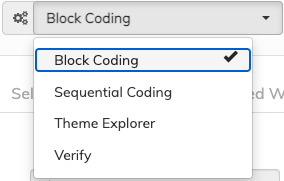
2. Project
This is the name of the project that you've selected to code a task from.
3. Wave
This is the name of the wave in the project that you've selected to code a task from.
4. Task Tab
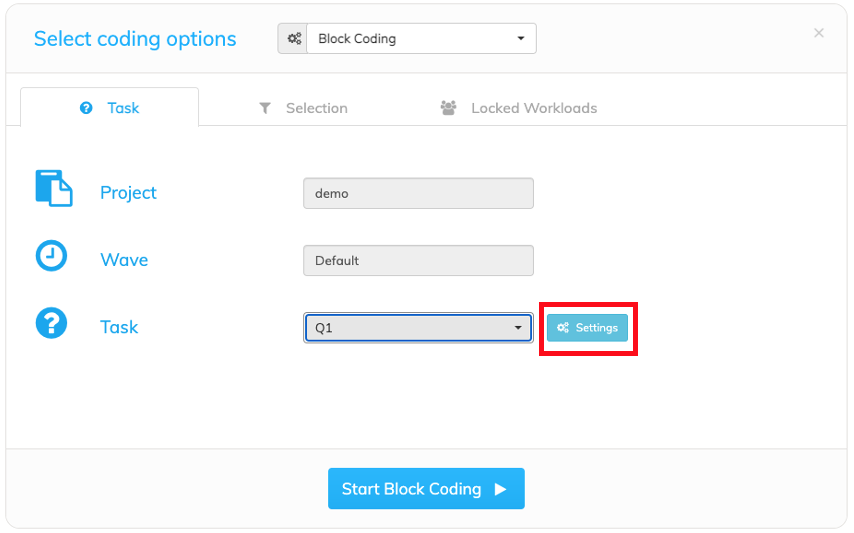
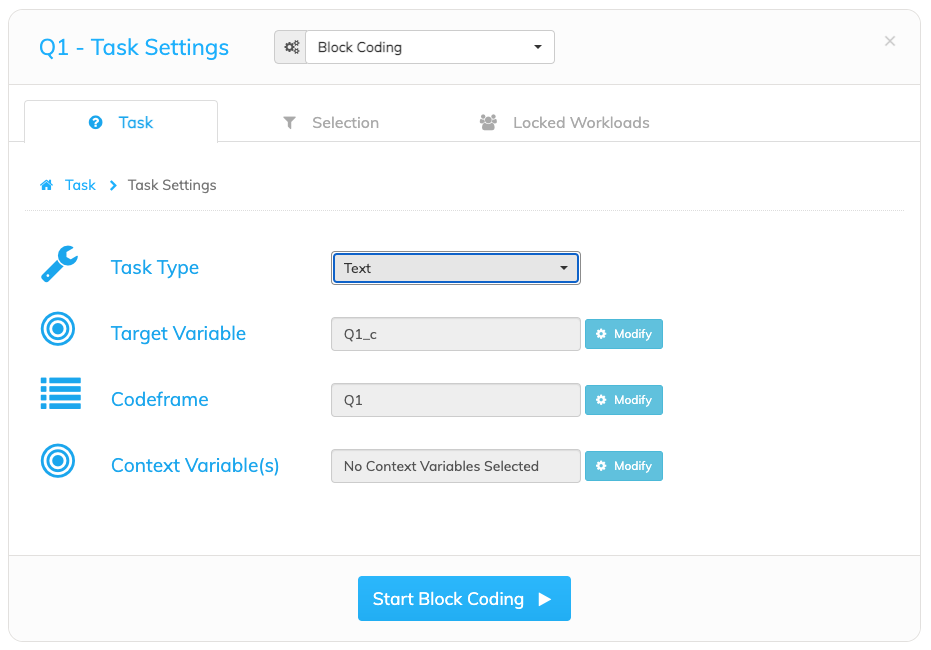
This is where you select the actual task you wish to code. Depending on whether the task you've selected has been initialised or not, the "Settings" button may appear next to the dropdown. When selected, the Task Settings will expand to allow modifications to the default settings
-
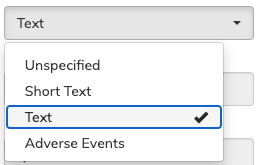
Task Type
- Unspecified - No task type defined
- Short Text - Brand mention or Other-specify
- Text - Typical open-ends of varying length
- Adverse Event - Special type for product test/healthcare surveys
-
-
Target Variable
- The default target variable name will be displayed for this task. Most of the time, you will not change this selection.
-
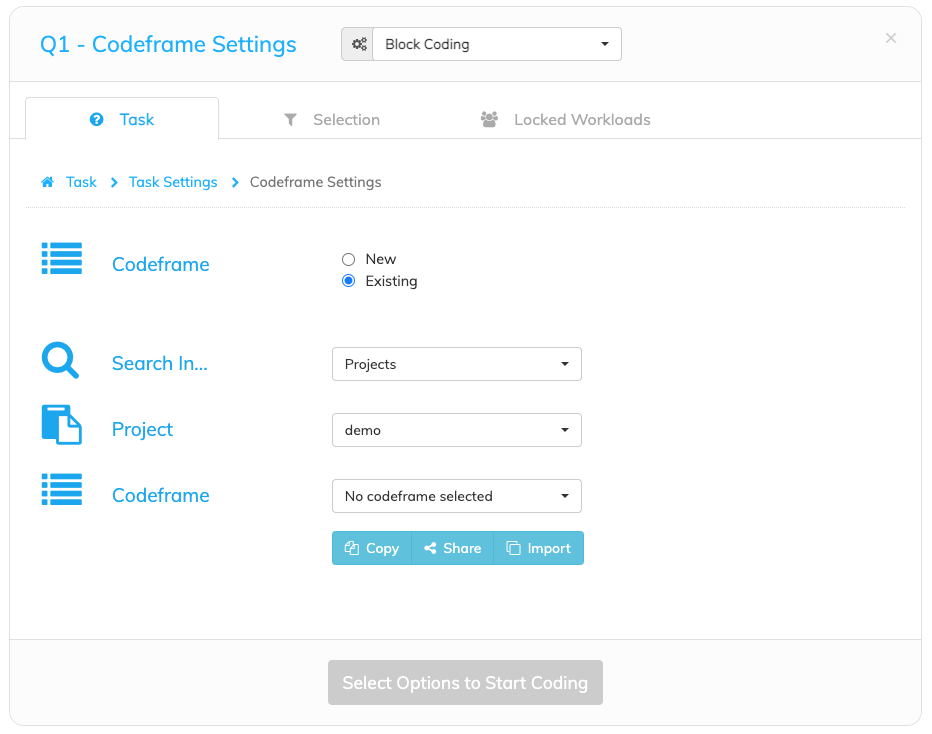
Codeframe
- Here you can select either a new or an existing codeframe in the project. The default name for a new codeframe is used. If you wish to select an existing codeframe you can select any codeframe from within the current project or from any other project.
-
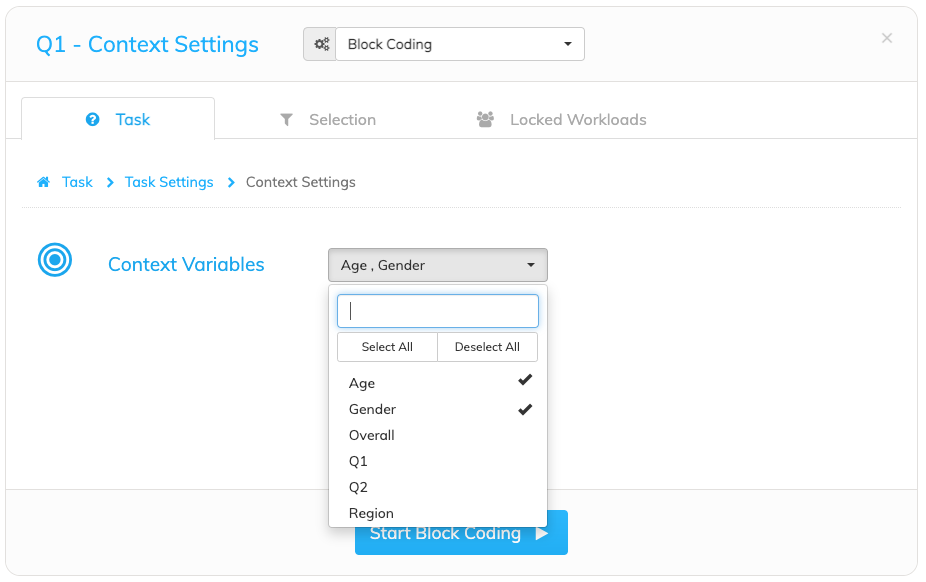
Context Variables
- Context variables are set up when the task is created. These are usually responses to demographics and other closed-end survey questions that are useful when coding. Context variables can be used to sort and filter in block mode.
5. Selection Tab
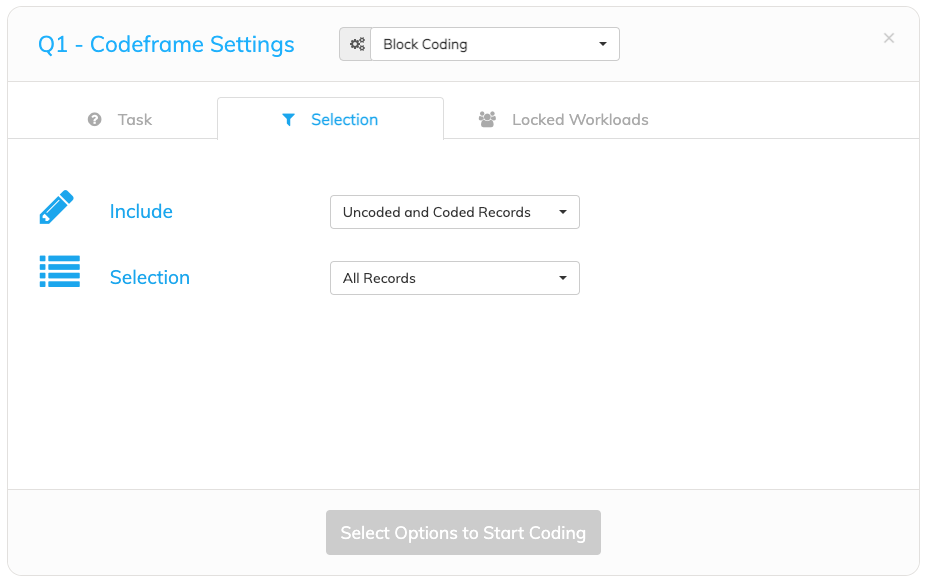
This is where you have the choice of filtering the records based on the available options:
-
Include
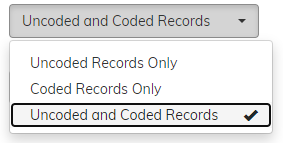
- 'Uncoded Records Only' will display records that have yet to be coded, 'Coded Records Only' will display records which have already been coded, while the last option will display both.
- 'Uncoded Records Only' will display records that have yet to be coded, 'Coded Records Only' will display records which have already been coded, while the last option will display both.
-
Selection
- This option gives you the choice to either interact with
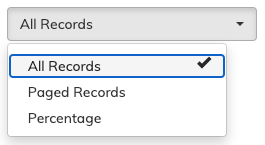
- All the records in a particular task
- Paged Records by specifying a set number of verbatims you want
- A Percentage of the imported verbatims
- This option gives you the choice to either interact with