Company Settings
Introduction
Within Codeit, there are certain settings which will inevitably need to vary from company to company.
For example, AI settings, default thresholds and export formats will often depend on individual circumstances.
Codeit provides a system of "Company Settings" that allows you to configure certain options and parameters on a company-wide basis.
Accessing Company Settings
The company settings can be accessed within the "Administration" section of Codeit.
Click the "Settings" navigation menu, then click on "Company Settings" to reveal the list of available company settings.
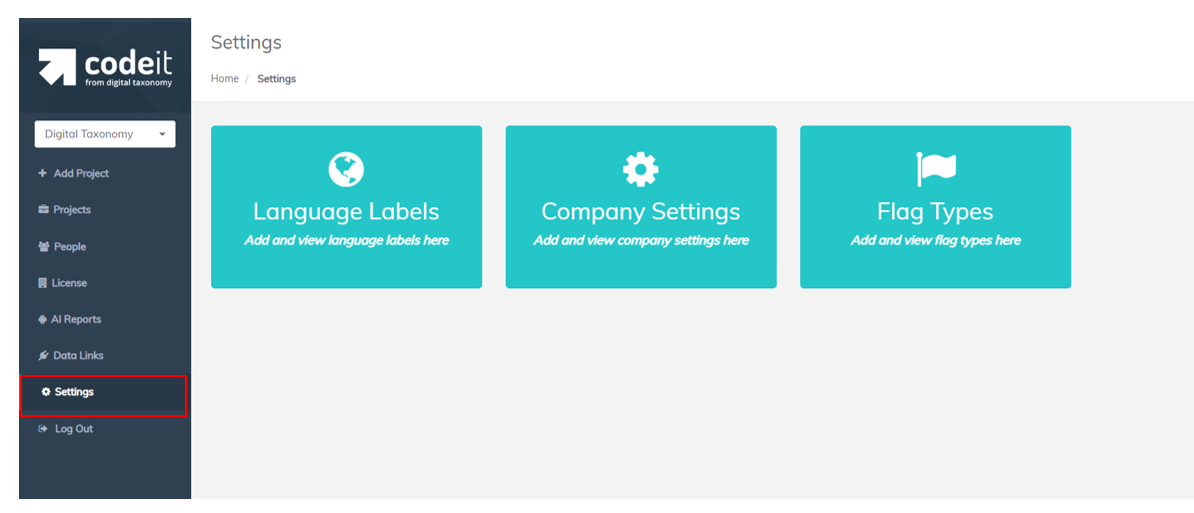
Available Company Settings
You may search for specific settings by entering text in the "Company Setting Search" box.

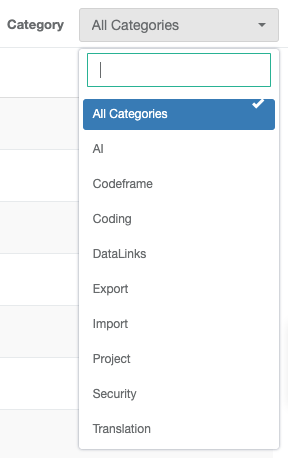
Use the "Category" drop-down selection to view groups of settings.
The following is a list of the company settings available within Codeit.
| Setting | Category | Company Default | Description | More Details |
|---|---|---|---|---|
| New Project - Text Matching | AI | On | AI Settings | |
| New Project - Text Matching Threshold | AI | 5 | AI Settings | |
| New Project - Text Rules Matching | AI | On | AI Settings | |
| Prevent AutoCoding on Coded Verbatims | AI | No | ||
| Allow Advanced 'Add Existing Items' Dialog |
Codeframe | No | ||
| Allow Copying of Library Codeframes | Codeframe | Yes | ||
| Allow Duplicate Text In Codeframes | Codeframe | No | Allow identical code category descriptions in the codeframe | |
| Allow Sharing of Library Codeframes | Codeframe | Yes | ||
| Enable Codeframe Blend Tool | Codeframe | No | ||
| Root Code Order | Codeframe | Show at Top | Code categories at the root-level appear at the top of the codeframe | |
| Show Editable Locked Workloads Switch | Coding | No | Concurrent Access | |
| Show Locked Workloads Tab | Coding | No | Concurrent Access | |
| Attach Project Name to File Names in Export | Export | No | ||
| Default Code Width | Export | 3 | Width of code values in traditional "flat-ASCII" data files, zero-padded | |
| Default Export Column Layout Type | Export | Default | Selections:
|
|
| Default Maximum Codes Allowed | Export | 10 | Limit the maximum number of codes exported to traditional "flat-ASCII" data files | |
| Default Multicode Export Type | Export | Concatenated | Selections:
|
|
| Default RID Width | Export | 5 | Width of RID in traditional "flat-ASCII" data files, zero-padded | |
| RID Qualified by Language | Import | No | ||
| Default Task Type | Project | Text | Selections:
|
|
| Mandatory Project Codes | Project | No | Controls whether a project code needs to be provided when creating or editing a project | |
| Show Complete Button on External Dashboard |
Project | No | Controls whether the "Notify Complete" button is displayed on the External Coder project dashboard | |
| Target Variable Suffix | Project | _c | Controls the default suffix (if any) to use when creating a target variable | |
| Display User Names to Delegation Parent Company | Security | No | ||
| PII Removal Text | Security | <REMOVED> | Choose replacement text for PII findings during Codeit Text Analytics | |
| Text Translator | Translation | Microsoft | Select the auto translation tool:
|
|
| DataLink Settings | DataLinks are custom integration capabilities to synchronize data transfer between Codeit and other applications. | DataLinks Information | ||
| Askia Api - Max Call Attempts | DataLinks | 3 | ||
| Askia Api - Pause Before Retry | DataLinks | 5 | ||
| Askia Api - Retry Pause Increment | DataLinks | 10 | ||
| Data Link Request Timeout (seconds) | DataLinks | 100 seconds | ||
| Data Links - Default Sync Coded Data From Codeit | DataLinks | Last Used | ||
| Data Links Projects Cache Duration (In Minutes) | DataLinks | 0 | ||
| Decipher Integration - Unique Id | DataLinks | uuid | ||
| Decipher Writeback - ourKey | DataLinks | uuid | ||
| Decipher Writeback Type | DataLinks | Expanded Variables | Selections:
|
Changing Translation Engine |
| Expand Decipher Grid Questions | DataLinks | No |