Coding Allocation - Overview
Introduction
After you create a project in Codeit and import some data, users are by default, free to code any task, wave or language they choose from the Codeit Project Dashboard.
Sometimes, however, it is desirable to control exactly which task, wave or language each person has access to on a project.
Codeit provides an "allocation" system that gives you the ability to distribute workloads to people in a fine-grained way.
The system is design in particular, with external users in mind (for example, freelancers, 3rd parties, subcontractors, etc...).
Typically, you want to allocate specific workloads to external users so they can code them, without also giving them full access to your Codeit account.
This page explains the process of setting up external users, allocating work and undertaking coding tasks.
The process of allocating work to external users, follows this workflow:

Before you can allocate work to external coders, you must first create them within the main "People" page of the Codeit Admin system.
External Coders are denoted by the fact that they are created under the separate "External Coders" tab in the people section of Codeit:
2. Assign Users
 2. Assign Users
External Coders are created at a company level (see above), but not automatically added to each project.
In order allocate work to an external coder, they must first be assigned to a project.
To achieve this, click on the relevant project in the Admin system and click the view button on the "People" section:

Within the project people page, click "Add Person" to assign a coder to a project:

Once a coder has been added to the project, you can assign coding work to them by clicking the "Add Allocation" button on the "Coding Allocations" tab.

Codeit will then display a dialog that allows you to create a rule that defines how coding work within the project should be allocated to a given user:
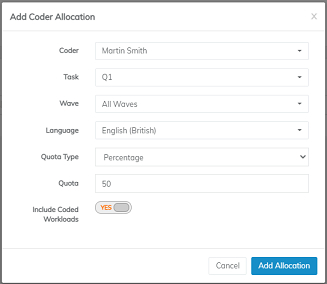
The settings available in this dialog are as follows:
| Setting | Description | More Details |
|---|---|---|
| Coder | The user that the allocation will apply to | |
| Task | The task(s) to include in the allocation rule | Under this setting, you can select either a single task or all tasks |
| Wave | The wave(s) to include in the allocation rule | Under this setting, you can select either a single wave or all waves |
| Language | The languages to include in the allocation rule | Under this setting, you can select either a single language or all languages |
| Quota Type | The type of quota to apply in the allocation rule | This setting can take the following values:
|
| Quota | The quantity of workloads to include in the allocation rule | This is either an absolute number or a percentage, depending on the Quota Type selected |
| Include Coded Workloads | Whether to include coded items in the allocation rule | Usually coded workloads are not included, because you only want external coders to work on new/uncoded workloads. However, sometimes external coders are required to check or modify coded data, so you may want to include coded workloads. |
Notes:
- Once an allocation rule has been applied and workloads are allocated to a coder, the workloads will remain allocated to that coder until the allocation rule is removed (or the workloads are deleted).
- Allocation rules are re-evaluated when data changes occur (e.g. when importing new data, creating new tasks or deleting records).
Workloads are not unallocated (see point 1 above), but new/unallocated workloads may be allocated, subject to the rules in place.
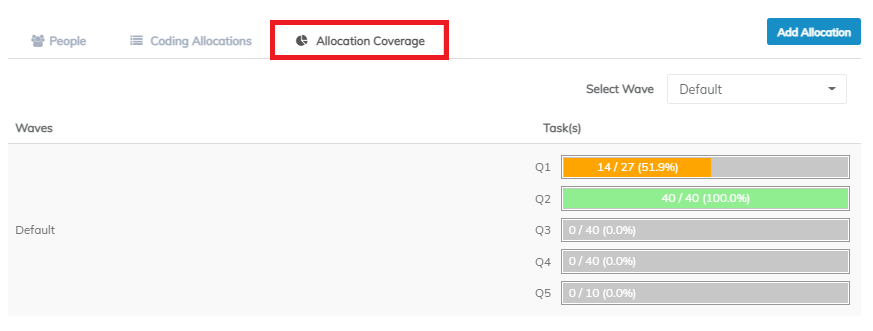
Once a coding allocation has been added, you can check to what extent all the available workloads in the project have been allocated, by clicking on the "Allocation Coverage" tab:
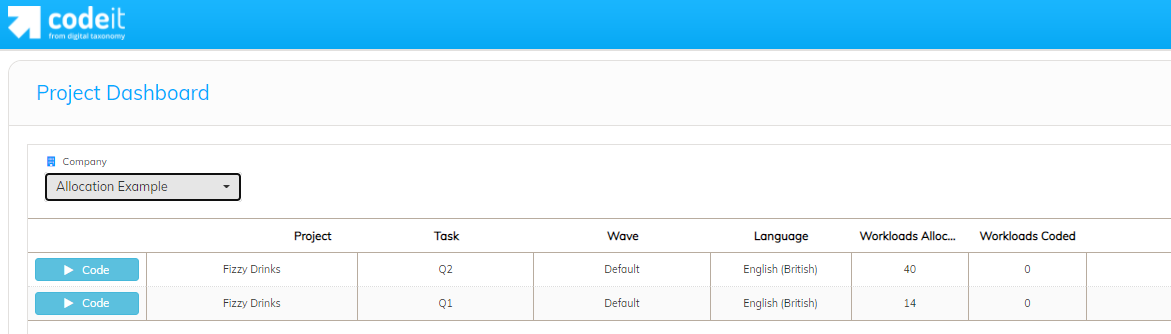
When external users log into Codeit, they will see a simplified dashboard that just contains a list of the items allocated to them:
5. Complete
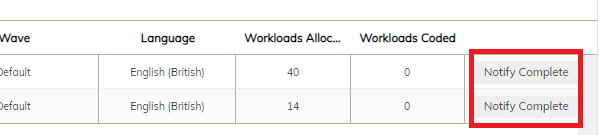
Optionally, you can enable a "Notify Complete" button on the External Coder dashboard:
When the coder clicks this button, Codeit will send an email notification to any Project Owners assigned to the project to inform them that the coder has completed this unit of work.
 When the coder clicks this button, Codeit will send an email notification to any Project Owners assigned to the project to inform them that the coder has completed this unit of work.
This option is switched off by default. In order to enable it, you need to set the "Show Complete Button on External Dashboard" company setting to "Yes" in the company settings page.