AI Settings
Introduction
The user can control which layer are enabled for each Wave and Task.
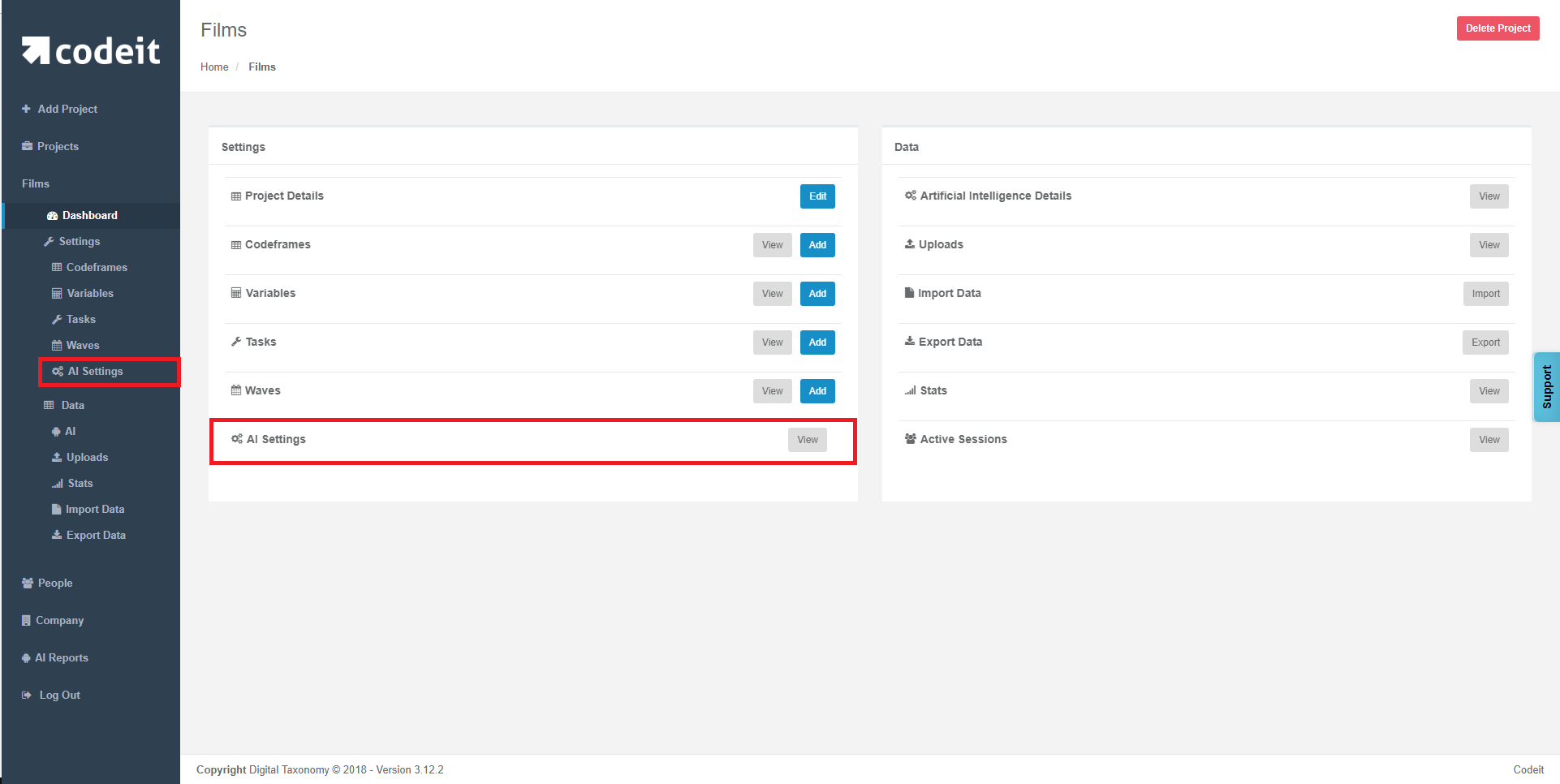
To access the AI Settings screen, select a project from the Administration Projects page, then AI Settings. There are 2 tabs to control the settings for Waves, and Tasks.
To access the AI Settings screen, select a project from the Administration Projects page, then AI Settings. There are 2 tabs to control the settings for Waves, and Tasks.
Wave AI Settings
The first tab "Waves" allows the user to control the default settings for all Waves. Newly created waves in this project will respect those settings.

Clicking on "Show Wave Details" allow the user to override the default settings for a specific Wave.
|
Settings |
Description |
|---|---|
| Text Matching | Allows you to toggle on off the text matching layer for a given task |
| Text Rules | Allows you to toggle on off the text rules layer for a given task |
| Machine Learning Enabled | Allows you to toggle on off the Machine Learning layer for a given task |
| Machine Learning Allow Autocoding | This setting controls whether suggestions in a Wave should be applied |
| Machine Learing Use as Machine Learning Training Data | This setting controls whether existing coded examples in a Wave should be used as training data |
Press "Save" before leaving this page or changing the selected tab.
Task AI Settings
The second tab "Tasks" allows the user to control the default settings for all Tasks. Newly created waves in this project will respect those settings.
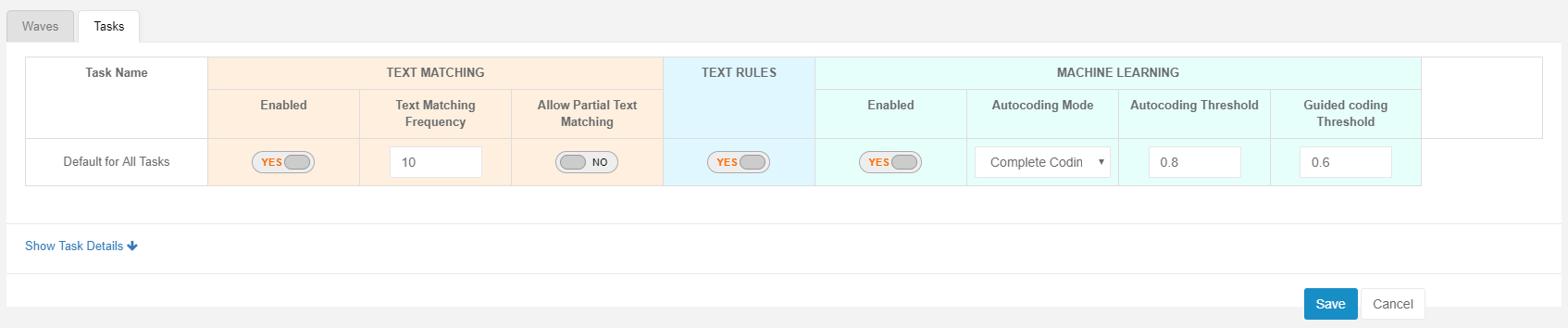
Clicking on "Show Tasks Details" allow the user to override the default settings for a specific Tasks.
| Setting | Description |
|---|---|
| Text Match Frequency | This setting controls the minimum number of prior examples required to be considered a match by the text matching AI layer |
| Allow Partial Text Matching | This setting controls whether an uncoded vexample should completely or partially match an existing coded example for the codes to be applied by the text matching layer |
| Autocoding Mode |
This setting regulates whether the Machine Learning layer can apply codes to a given verbatim based on the overall confidence of the suggestions available. |
| Autocoding Threshold | This setting sets a minimum confidence level that each AI suggestion much achieve before it can be applied The default for this setting in 0.8. |
| Guided Coding Threshold | This setting sets a minimum threshold required for workloads to be moved to Guided Coding. Note: That this is the lower bound of the range. The upper bound is the Autocoding Confidence Threshold. It is therefore an error to have a Guided Coding Confidence Threshold that is higher than the Autocoding Confidence Threshold. The default for this setting is 0.6. |
| Text Matching Layer | Allows you to toggle on off the text matching layer for a given task |
| Text Rules Layer | Allows you to toggle on off the text rules layer for a given task |
| Machine Learning Layer | Allows you to toggle on off the Machine Learning layer for a given task |
Press "Save" before leaving this page or changing the selected tab.