Defining Language Labels
Introduction
When importing multilingual files, it is useful to have a flag in your file that indicates which language each record belongs to.
For example, your data might contain values like "French" or "Spanish" that indicate the relevant language for each record.
However, it is more common to have values that are not actually names of languages, for example country names like "France" or "Spain"
For Codeit to make sense of values like this, you need to provide a mapping between your flag values and the corresponding languages in Codeit.
Some language mappings are so common (for example "France = French", "Spain = Spanish") that you will probably want to define them once and use those definitions in all your projects.
Some language labels are fairly universal, so Codeit provides them by default as "System labels". These are provided automatically to all companies. These are fixed, and cannot be edited. However, they can be overridden, if necessary, at the company, subcompany or project level. If you require a language label not covered by the in-built System labels, you can define your own custom labels at the company or subcompany level.
This page explains how you can define Language Labels in your account for use during import.
Note: Company level labels are best used for common labels that regularly appear in your projects. For lesser used, or project-specific labels, it is usually better to define these as Project Language Labels, which limits the scope of the label to a specific project. For example, you may have a project in India where you're only interviewing English speakers. For this project you would want to define a language label "India = English", but you would want to limit this rule to that single project rather than make it a company-wide label. You can find instructions on creating project level language labels here.
Steps
- From the Codeit Project Dashboard, click the "Administration" button in the top Ribbon Menu
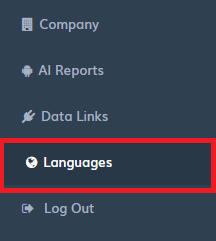
- From the right-hand menu click "Languages":
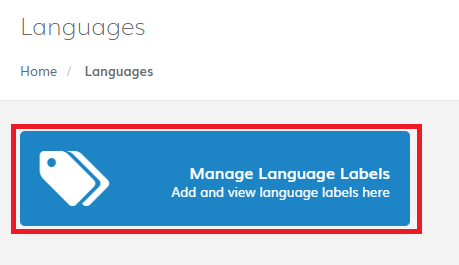
- Click "Manage Language Labels"
- To add a new language label, click "Add New Language Label" button (in the the top-right hand corner).
- Enter the label you want to define and the language you want to assign it to.
- The 'Applies to Sub companies' checkbox is visible if you are at Company (rather than sub-company) level.
Selecting this checkbox, allows all sub-companies to inherit this new label, without having to redefine for each sub-company.

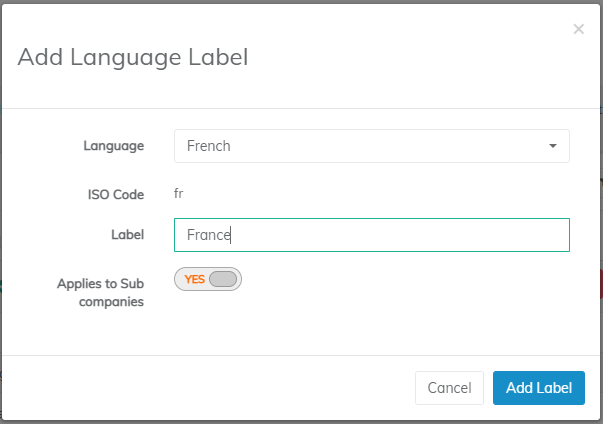
In this example, we have assigned the label "France" to the French language, at the company level and also applied it to all sub-companies.
Therefore, any records containing "France" within the selected Language Field will be automatically assigned to the French language on import.