Using the Export Wizard for Common Reporting
Introduction
The Export Wizard helps you to export the type of data you're looking to export quickly and easily. This document provides a short guide on how to use this feature.
The Export Wizard allows you to export the various file and image formats currently supported. Records, text analytics, statistics, codeframes, and wordclouds, all in one convenient location and through an intuitive and easy-to-use wizard.
Exporting Records - Common Data Files
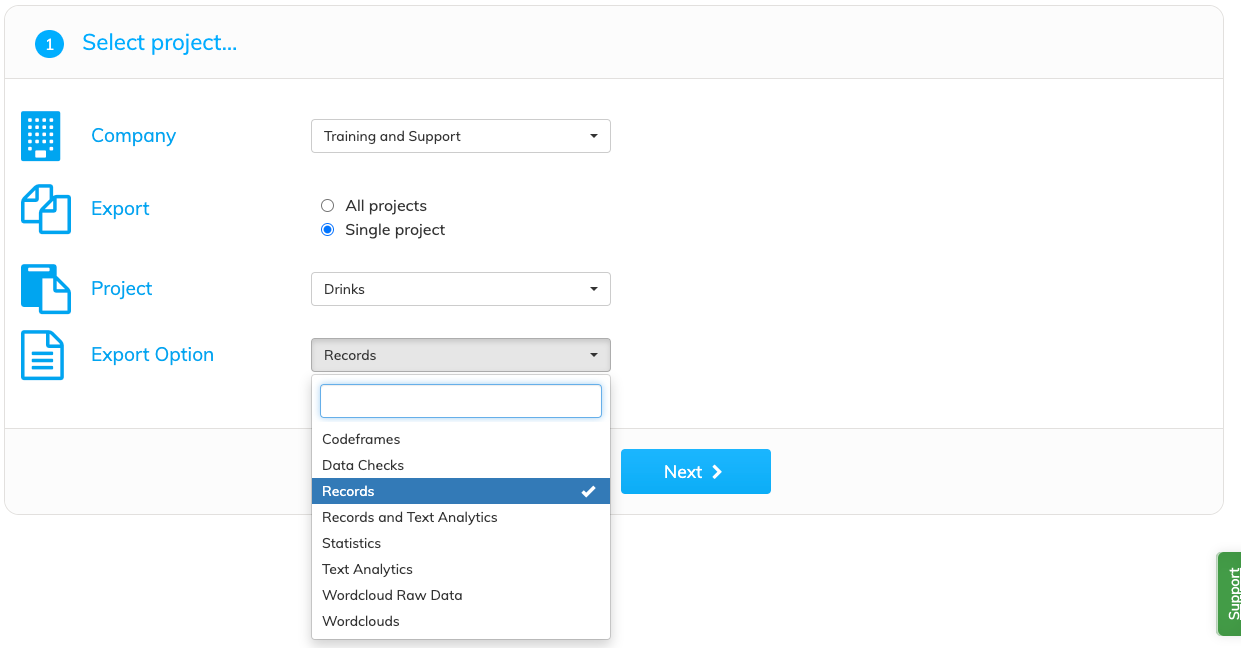
Select the "Records" Export Option
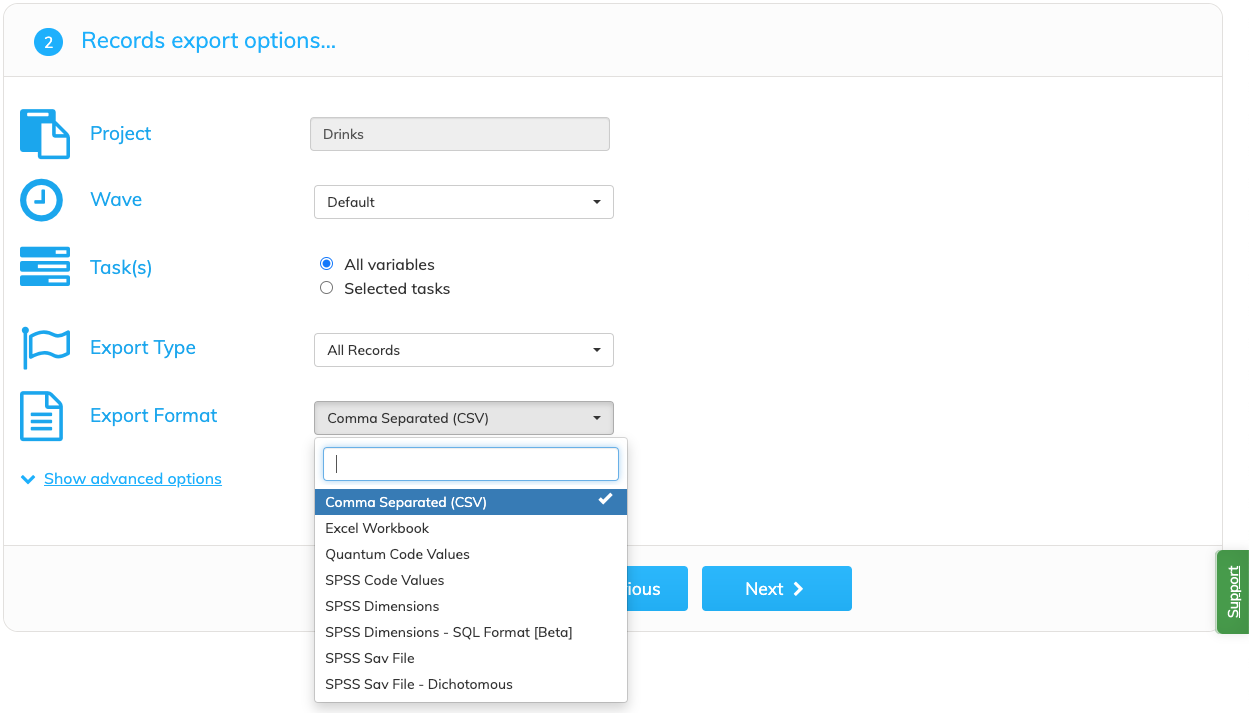
There are options presented to allow you to include specific project data in waves and tasks you wish to include in the export.
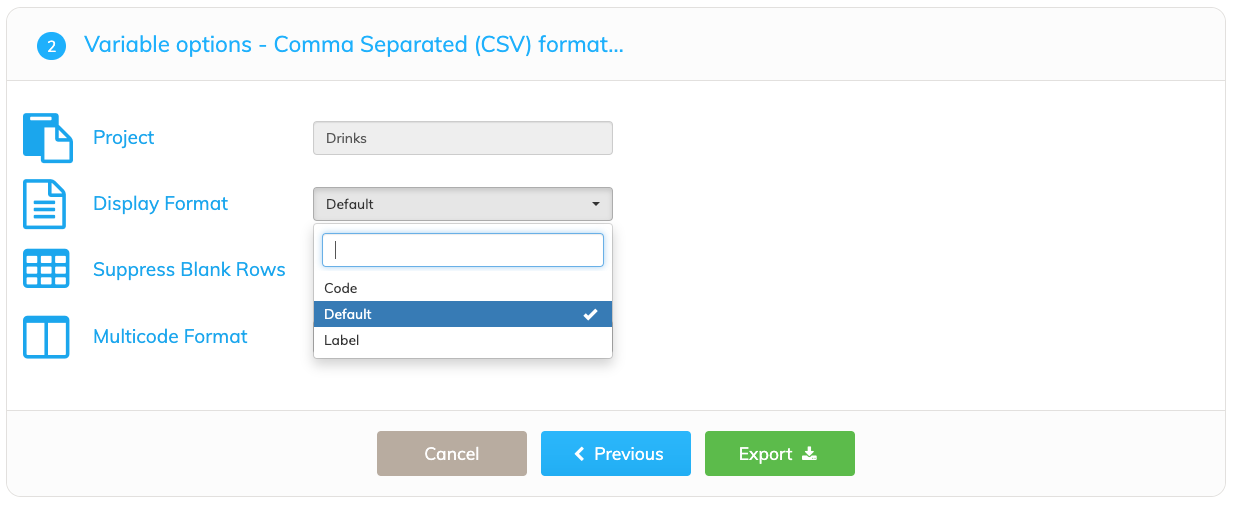
The next step deals with the variable-level options you have when exporting records, and allows you to:
Set the display format of exported variables to one of three options: default, which exports target variables in the format they have been set to in the Admin section. If no changes are made in the Admin section the default format is the same as the code display format, which exports the numeric code values. The label display format setting exports code category labels rather than the numeric code values.
To learn more about the advanced options for export formatting see Specifying Export Order
Suppress blank rows, which may result from record data changing between waves.
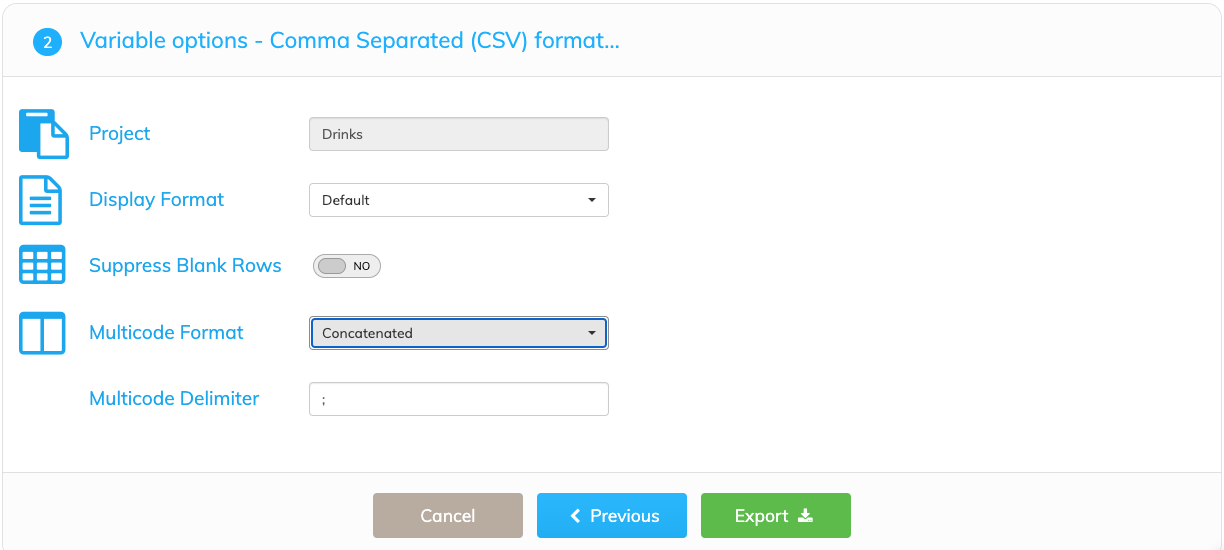
Set the multicode format of variables to default, which leaves the variables in the multicode format they have been set to in the Admin section. If no changes are made in the Admin section the default format is the same as the concatenated multicode format, which displays the code values or labels in a concatenated form in a single column delimited by the specified Multicode Delimiter. The expanded multicode format, which sets the variables to display the code values or labels in individual columns. The number of columns needed to display the maximum number of values/labels is calculated automatically.
Exporting Codeframe Frequency Report
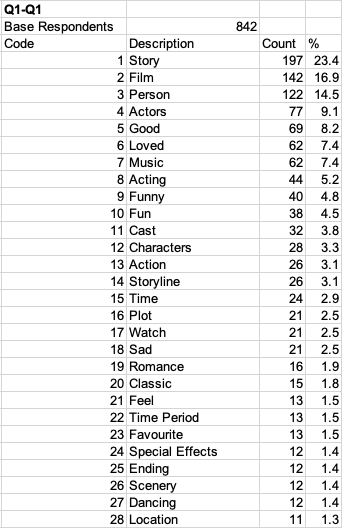
The Codeframe Frequency Report will produce an Excel workbook containing sheets for each coding Task. There are options that allow for multiple version of the report based on Context variables, shared code frames, and iterative tasks.
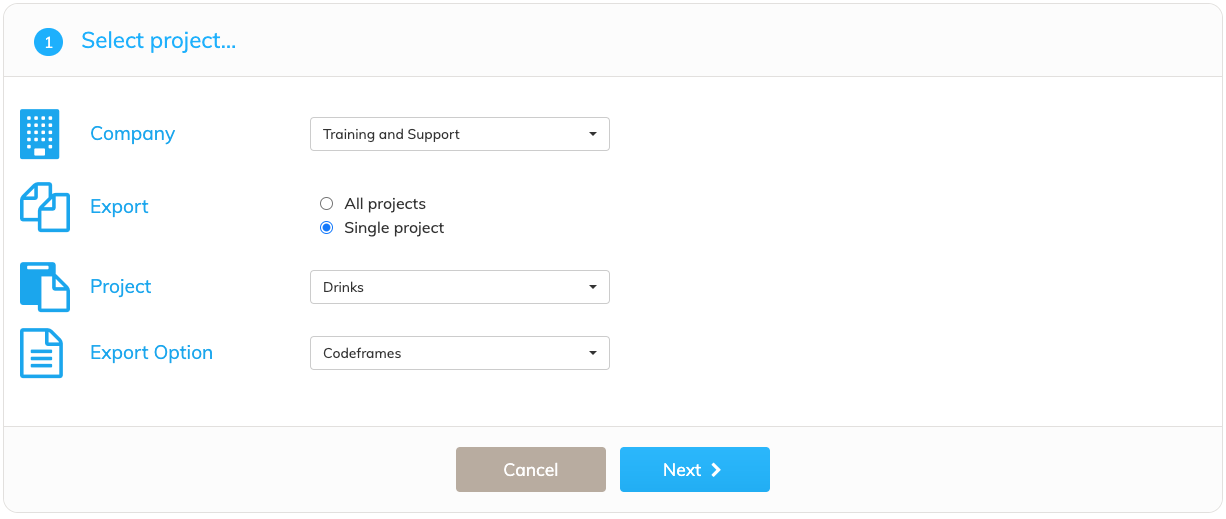
First, select the Codeframes Export Option in the first
Next, select the Codeframe Frequency Report export type.
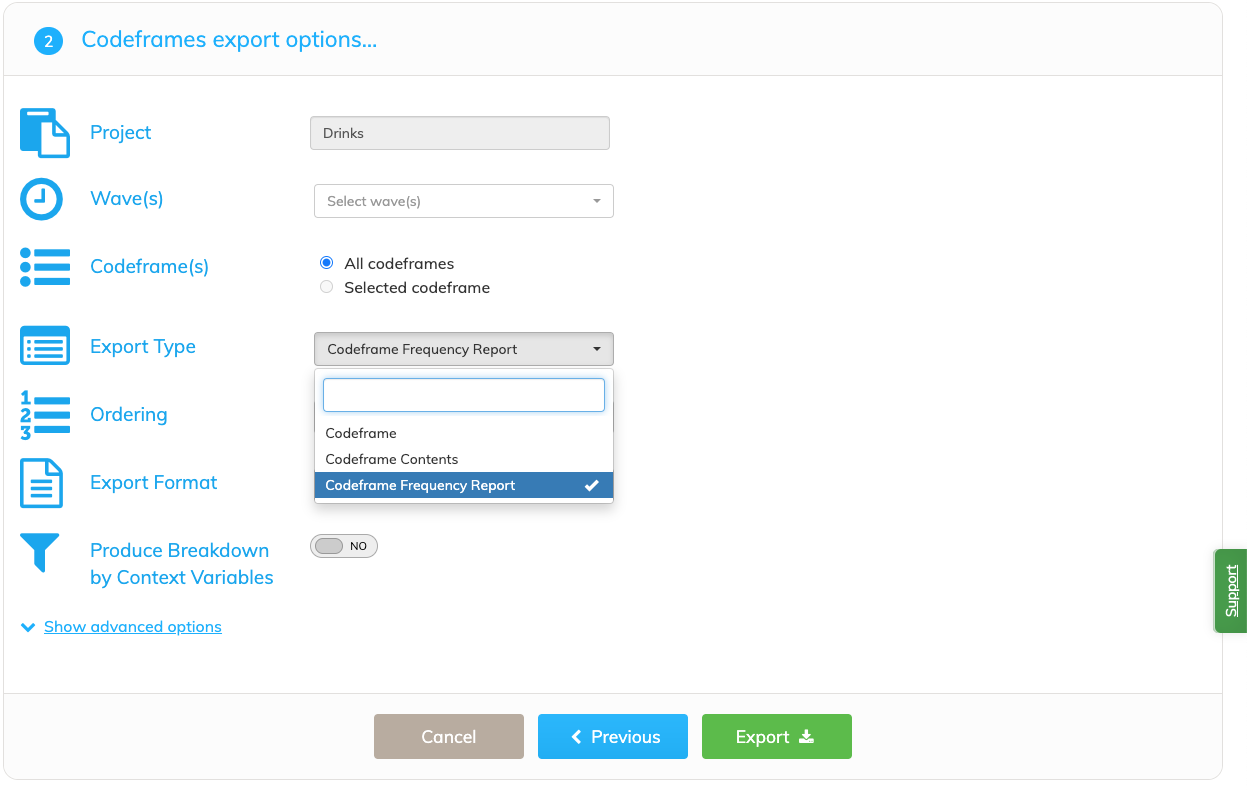
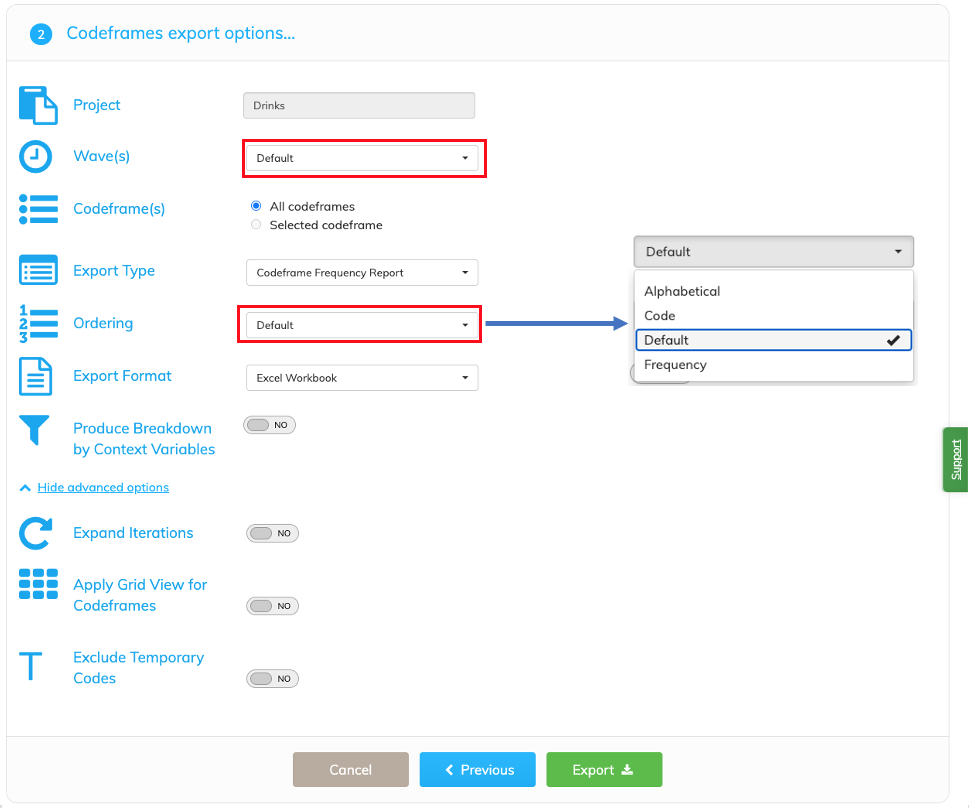
Select a project wave - select the Default if there are no additional waves.
Select the codeframe ordering for the report.
There are options to create multiple reports for each Context variable category and different display of Tasks the share the same codeframe in grids. For iterative questions, each separate iteration can be displayed along with a total column.
Example Codeframe Frequency Report
Exporting Wordclouds
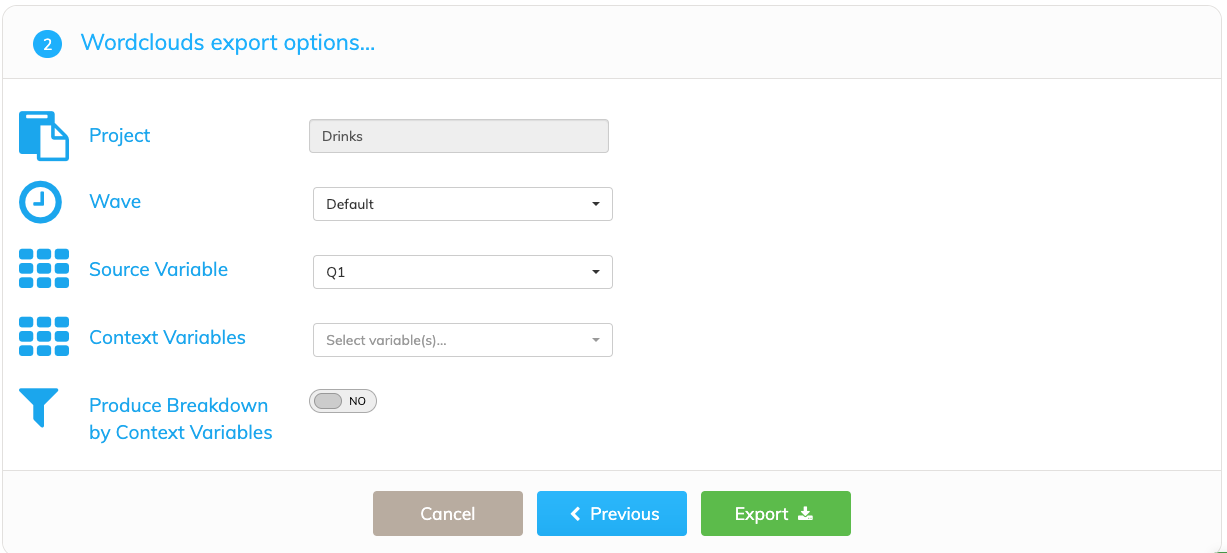
This option allows you to export source variable data to a visual wordcloud in the PNG format. Like in other export types, you select the wave and task you want to export. When you've selected your options, click 'Export' and a file containing the wordcloud(s) should be exported.
The wordcloud for each task should look similar to this: