Concurrent Codeframe Editing
When using a codeframe, it is extremely important that you are working with the latest version of that codeframe.
For example, it is use applying a code to a set of verbatims if another user has removed that code from the codeframe five minutes earlier.
Codeit puts various safeguards in place to ensure all users are using the latest version of the codeframe at all times.
Optionally, users can be notified whenever a codeframe changes, so they are always aware of when a Codeframe has changed.
Example
Imagine a situation where a single codeframe ("Master Brands") is shared between three tasks within two different projects.
Further suppose that four people are all working on these three tasks all at the same time, as follows:
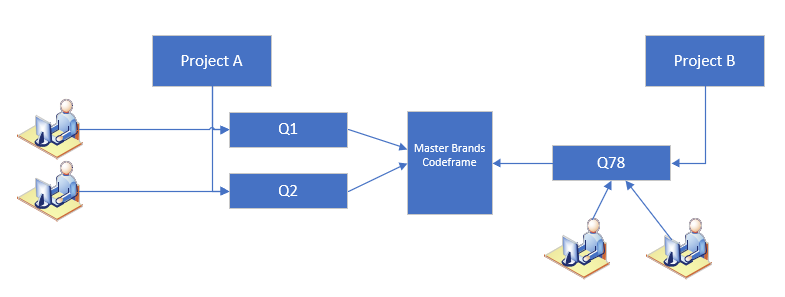
If the codeframe is changed by anyone, it must be immediately refreshed and updated to the latest version for the other users.
Change Notification
By default, when a codeframe is changed, users will immediately see a pop-up dialog to notify them that the codeframe has been changed:
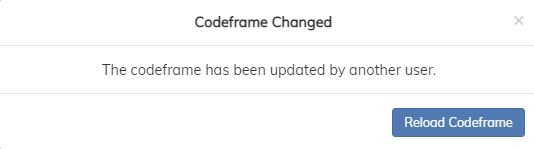
In order to continue coding (if the user is in a coding screen) they user must click "Reload Codeframe", to continue coding.
This will dismiss the dialog and refresh the codeframe by loading the latest version.
Optionally, the change notification dialog can be suppressed. This can be useful when a codeframe is undergoing multiple changes and the notifications become distracting.
To disable notifications, deselect the option "Display Warning when the Codeframe is externally updated" in the "Settings" ribbon menu.
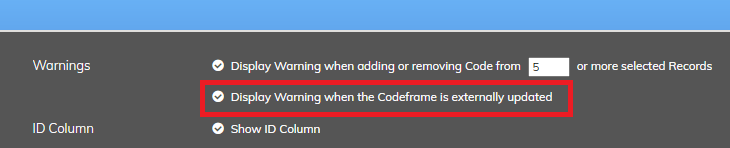
This setting is user-specific, and will apply to all projects for a given user until changed.
Edit Mode
Under normal circumstances, while users are making small changes to a codeframe, it is fine for multiple changes to happen at once.
Codeit's system of Change | Notify | Refresh means that small, concurrent changes are handled smoothly.
However, there are some situations where a user might want to hold an exclusive lock on a codeframe for an extended period of time.
For example, when doing a final "clean up" (moving items, collapsing items, tidying labels, creating nets, renumbering etc...) of the codeframe might require an exclusive lock on the codeframe.
In this situation, the codeframe can be put into "Edit Mode" by clicking the "Edit Mode" toggle at the top of the codeframe:
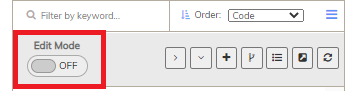
While a codeframe is under "Edit Mode" for a user, no other users are permitted to make changes to the codeframe.
Forcibly Changing Edit Mode
If a user remains dormant in "Edit Mode" for a long period of time, usually Codeit will automatically end the users session and switch off edit mode.
If for some reason "Edit Mode" remains on, it can be forcibly switched off in the Administration section of Codeit.
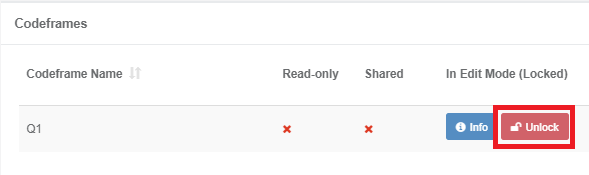
To do this, browse to the relevant Codeframe and click the "Unlock" button: