Importing Multiple Sheets From Excel Workbook
Introduction
The Import Data Wizard in Codeit allows you to import data from an Excel Workbook. An important feature of Excel is that workbooks can contain multiple worksheets.
This page explains the options available within the Import Data Wizard for choosing worksheets and controlling how the data are interpreted.
Select Dataset
During import, when you select an Excel workbook containing more than one (visible) worksheet, a page will be shown allowing you to choose which worksheets to import from.
The Import Data Wizard in Codeit allows you to import data from an Excel Workbook. An important feature of Excel is that workbooks can contain multiple worksheets.
This page explains the options available within the Import Data Wizard for choosing worksheets and controlling how the data are interpreted.
Select Dataset
During import, when you select an Excel workbook containing more than one (visible) worksheet, a page will be shown allowing you to choose which worksheets to import from.
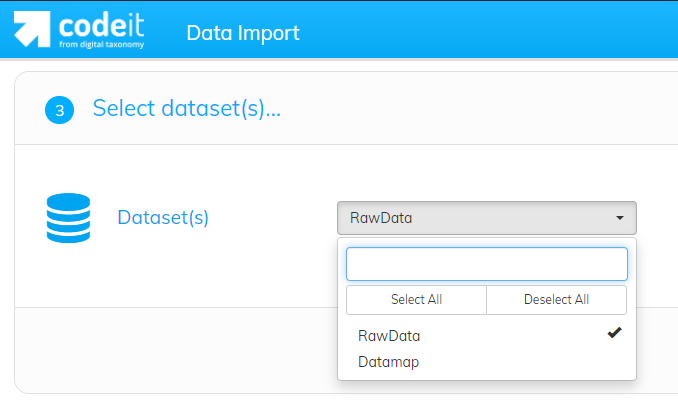
If you select a single worksheet (as in the screenshot above) then the import is straightforward and obvious.
If you select more than one worksheet, then a further "Record Layout" option becomes available.
If you select more than one worksheet, then a further "Record Layout" option becomes available.
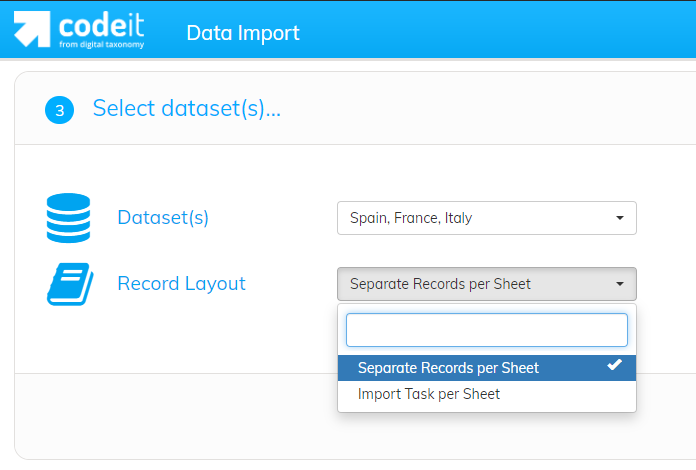
Record Layout
The Record Layout option allows you to choose between two different layout types:
-
Separate Records per Sheet
Choosing this option tells Codeit that the rows in each sheet represent different and separate interview records.
So, if you select 3 worksheets containing 10 records each, Codeit will import this data as 30 separate interview records.
-
Import Task per Sheet
Choosing this option tells Codeit that the interview records being imported are split across the selected worksheets.
When importing the data, Codeit will "stich together" the data from each sheet, using the Id column selected during the import process.
So, if you select 3 worksheets containing 10 records each, Codeit will import this data as 10 interview records, as opposed to the 30 records above.
This assumes, of course, that each sheet contains the same 10 Id values. If the sheets contain different sets of Id values, then Codeit will import as many records as there are unique Id values across the sheets.