Importing a Codeframe
Introduction
There may be certain instances where it's more convenient to simply import a codeframe from a file rather than creating one through Codeit. Codeit's codeframe import feature lets you import a codeframe from an Excel file in two different layout types 1. Flat Layout and 2. Symbol Layout.
To access this feature, go to the Administrator menu, select the Project, and then the Codeframes menu. Select Add New Codeframe.
Next, open the "Edit Items" menu for your new codeframe and toggle into the Edit Mode.
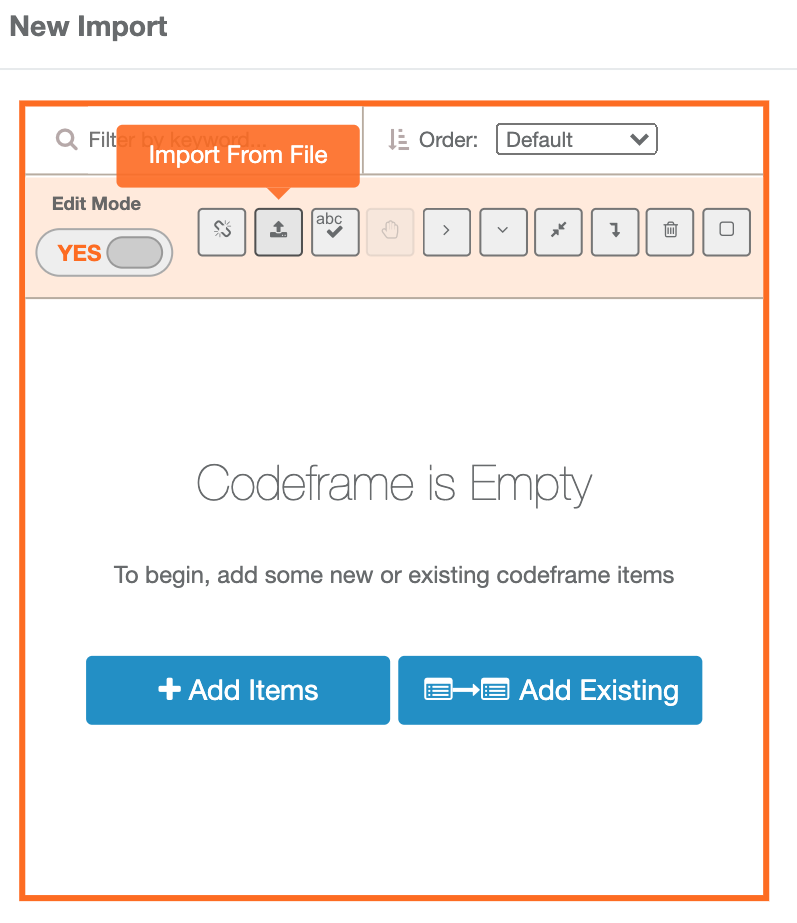
Select the "Import From File" button.
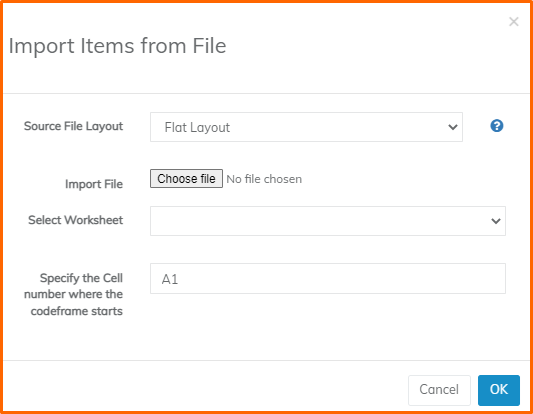
Next, Select an appropriate Source File Layout. Choose your codeframe import Excel file. If your Excel file has multiple worksheets, select the appropriate worksheet. Specify the Cell number where the codeframe starts. Select Ok.
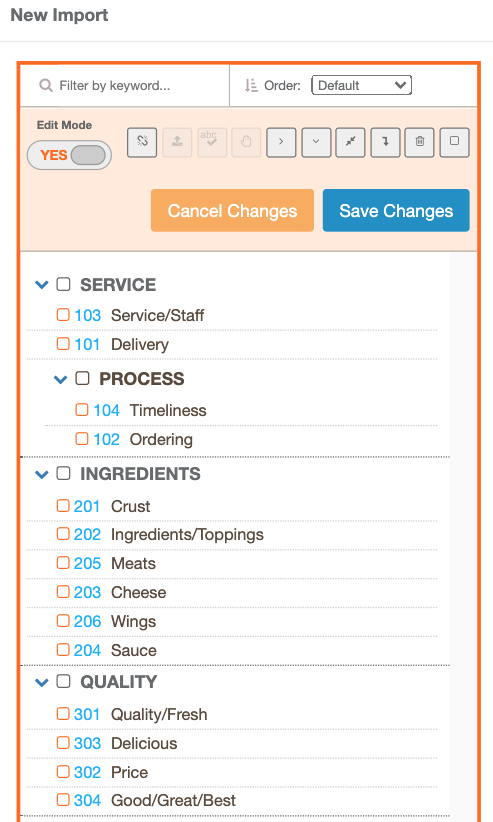
Confirm the codeframe layout and select Save Changes.
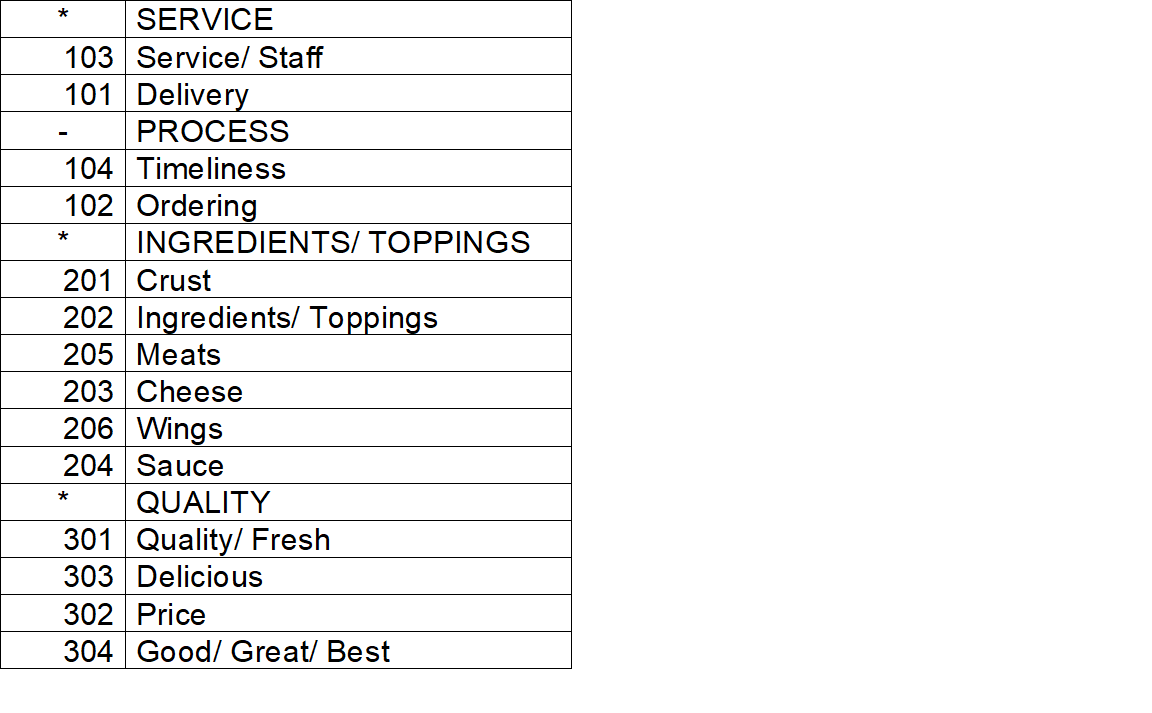
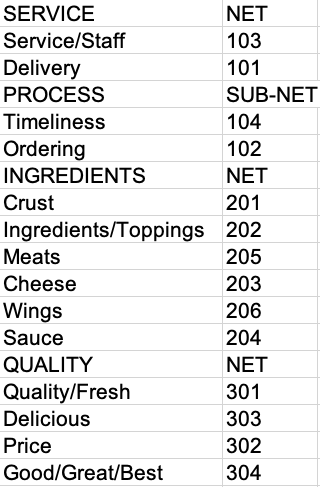
Codeit supports two file layouts 1. Flat Layout and 2. Symbol Layout. These layout types require the Excel file to be laid out as specified in the pictures below, however, colours and text formatting are optional and do not affect the importing of the file.
1. Flat Layout
- Nets must use the "NET" text in Column 2 and sub-net, the text "SUB-NET"
- Codes must have their labels in Column 1 and their codes in Column 2.
2. Symbols Layout
In this layout, symbols are used to define the different levels of nets (net, subnet, subsubnet etc.). The definition of symbols can vary between files.
- Nets must use the appropriate symbol in Column 1 and their labels in Column 2.
- Codes must have their codes in Column 1 and their labels in Column 2.