Auto-Translating Data in Multiple Languages
Introduction
Codeit supports auto-translation for more than 50 languages. For details about the supported language, see Article "Supported Languages"
When specified during import, verbatims in any of the supported languages are translated into English.
The coder can then choose to work natively or in English.
For coding:
- if English is chosen in the Language dropdown, then all the English verbatims and the auto-translated verbatims will be available in Block/Sequential/Verify.
- if a specific language is chosen, then only the verbatims in this language will be available.
Formatting the Data to be Imported
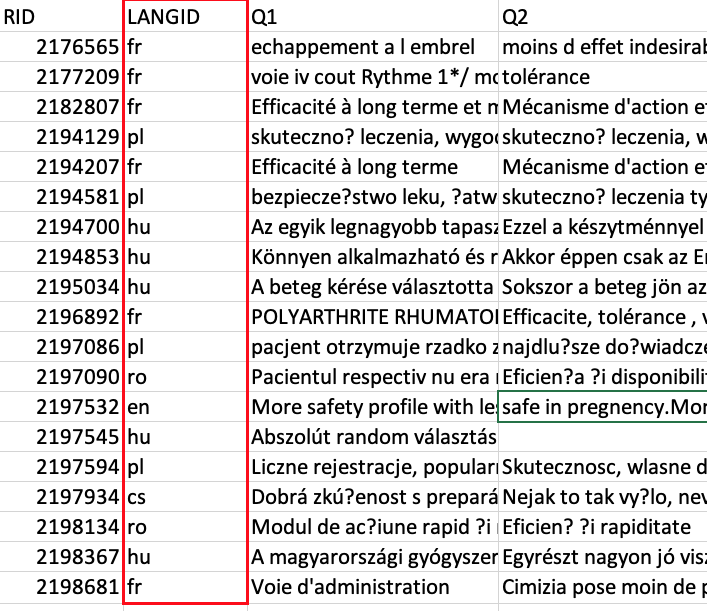
To identify the language-label for each record in the file to be imported, you must include a language ID column in the file. The LANGID column, below, holds the language-labels.
Creating the Account-Level Language Labels
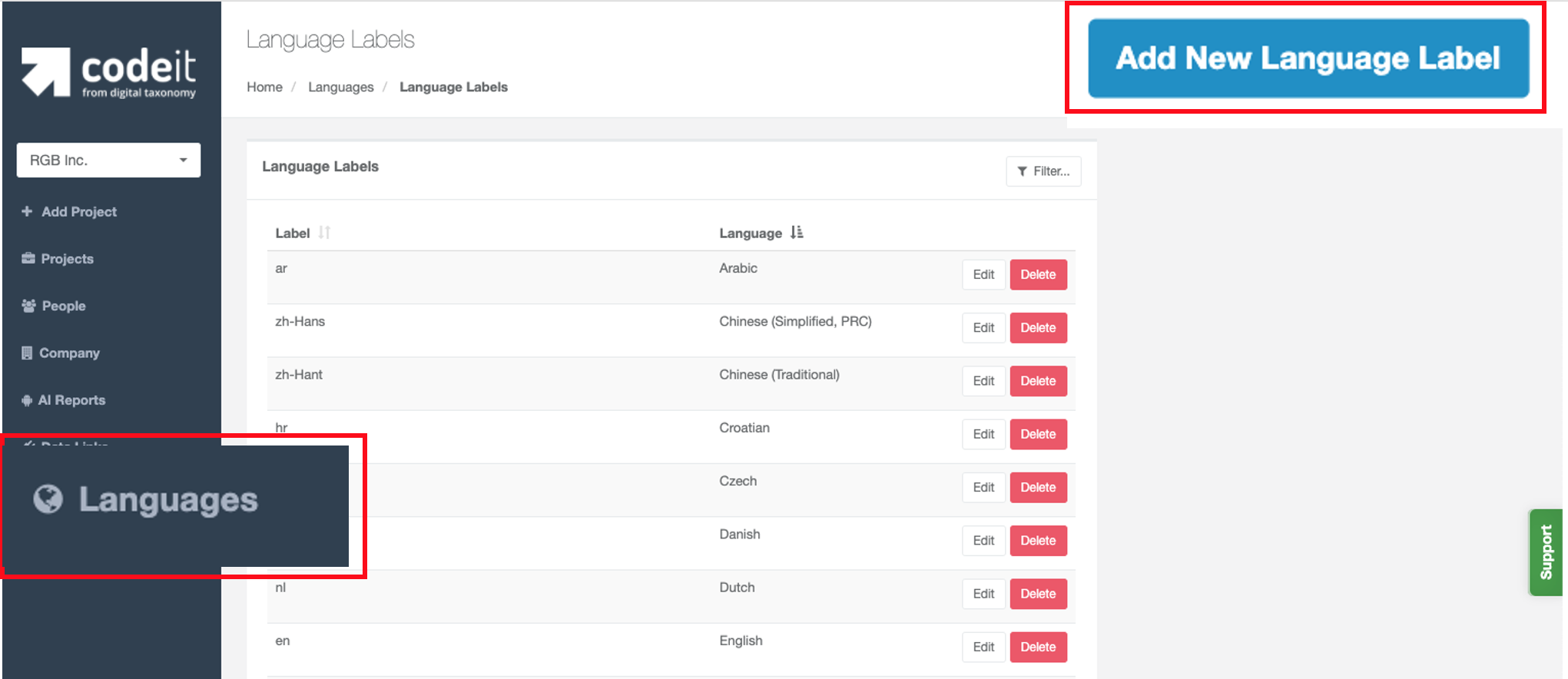
Access the Administrator menu for your Codeit account and select the Languages from the options on the left. Select the Add New Language Label button in the upper-right.
Adding a New Language and Label
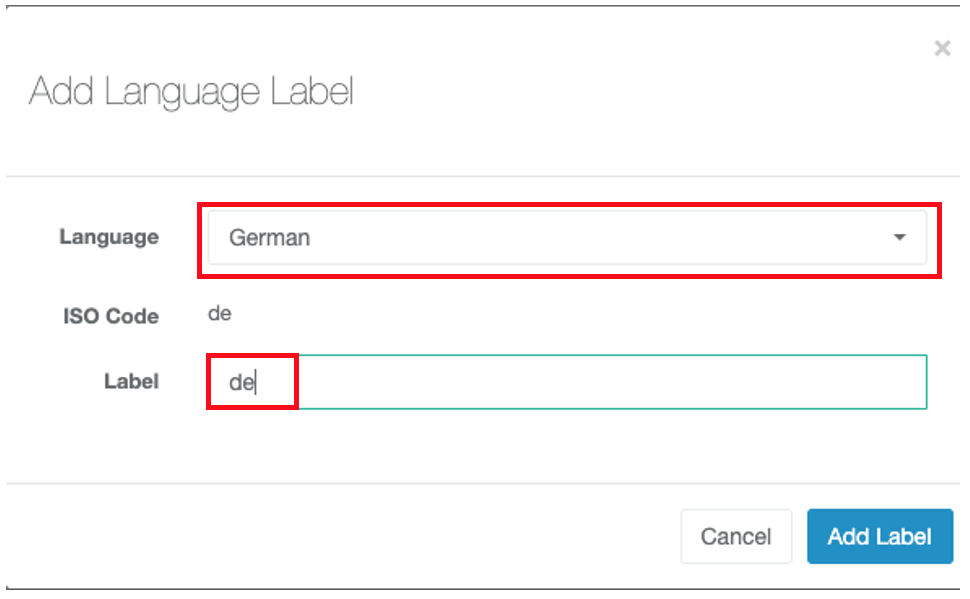
When adding a new language, select one of the Supported Languages from the Language drop-down menu. Then provide a Label. The Labels specified must match those in the data file to be imported. A specific language may contain multiple labels.
Importing Data in a Multiple Languages
On Import, you can choose to import data containing multiple languages defined in a language ID column in the import file using the dropdowns highlighted below:
IMPORTANT: The columns to be translated automatically need to be ticked in the Auto-Translate table column.
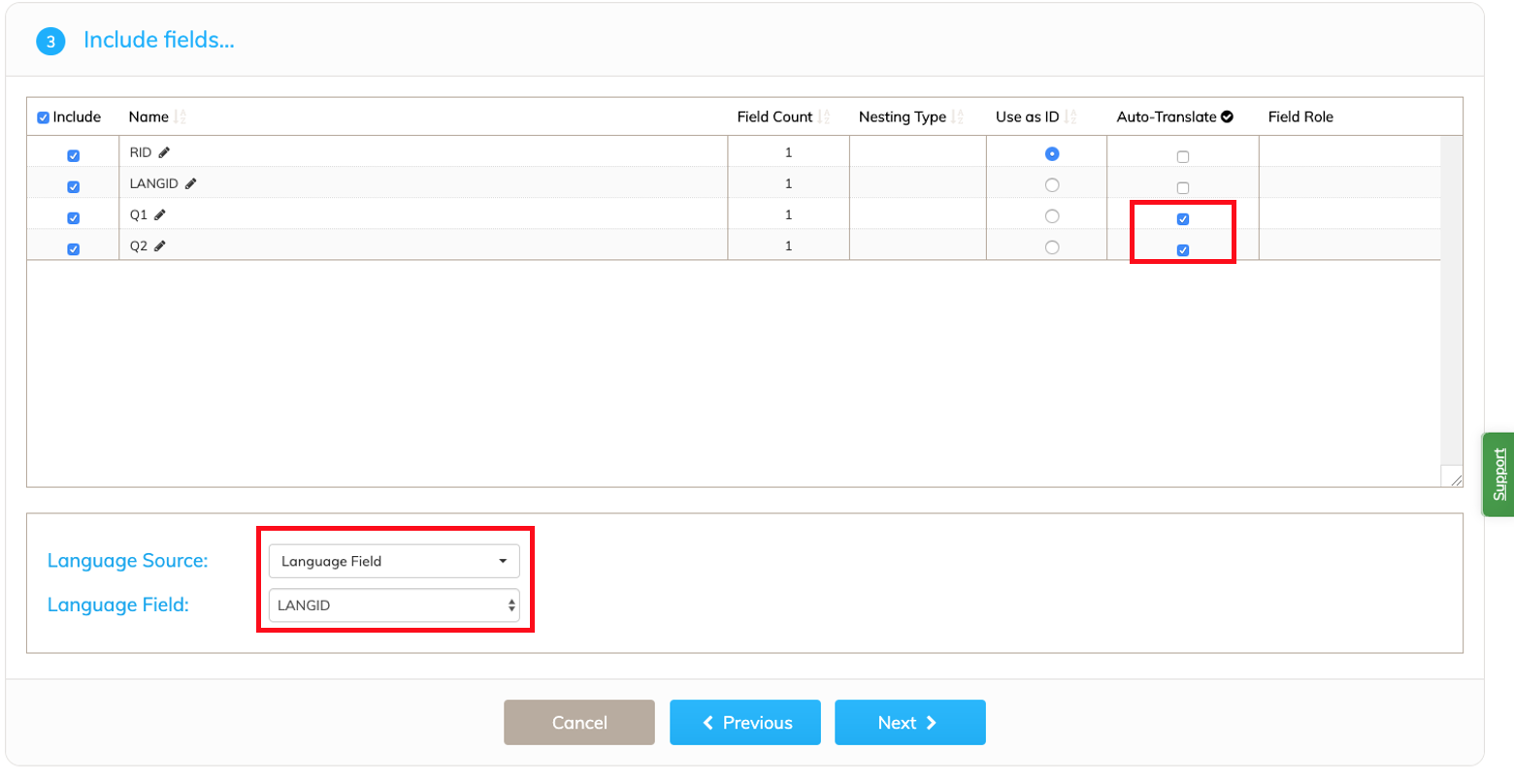
The Auto-Translate tick-box is available only if the specified Language is in our list of supported languages and if the variable is included in the Import.
You can then click the "Start Coding" button and both English and the native language will be available in the Language dropdown:
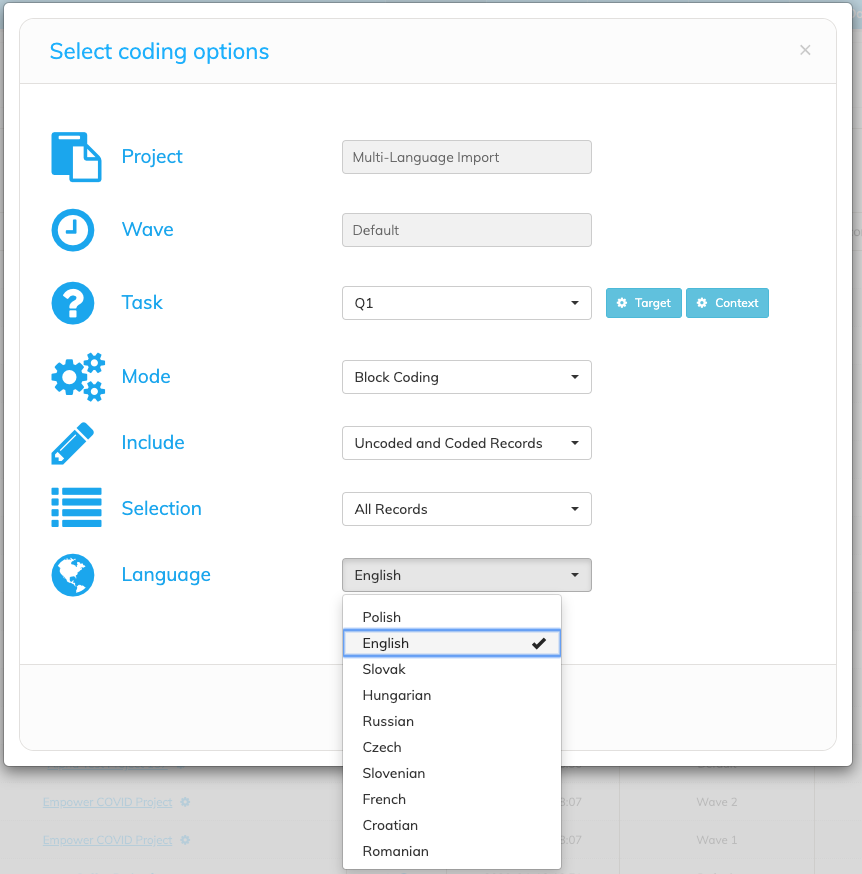
If the specified language during import is not the correct one, the translated value will be set as the original value.
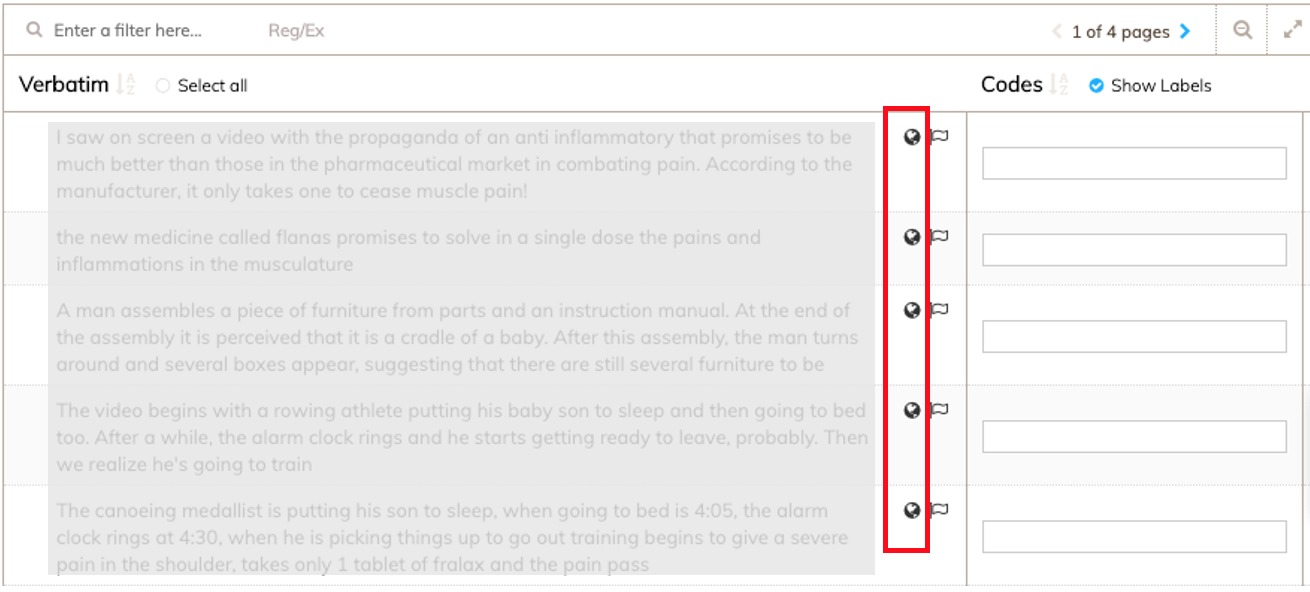
In a Coding screen, an icon is displayed next to the auto-translated verbatims:
Working with the Codeit Artificial Intelligence
If the source verbatims have been auto-translated, then all the AI layers (Text Matching, Text Rules, Machine Learning) will work on the auto-translated text (not on the original source text). In other words, once you have auto-translated, you should stick with the translated text for on-going processing.
The Machine Learning is only supported for auto-translated verbatims (into English) and does not work for source languages other than English – the ML is only currently supported in English. Our recommendation is that to take full advantage of the ML capabilities in Codeit, you should use the auto-translation feature.
If you have chosen to not enable auto-translation, and work in the original source language, then only Text Matching and Text Rules layer will work with your original source language. To be clear Text Matching and Text Rules are supported in all languages, but Machine Learning is only available for English.