Importing Data via Data Links
Introduction
One way to import data into Codeit for coding is via the data link feature. Before proceeding with this article, it might be worth reading through this article in order to learn about managing data links, if you haven't already done so.
The 'Link Data' wizard
The Link Data wizard allows you to import data into Codeit from an external source using a data link.
To access the Link Data wizard, from the Project Dashboard, click the 'Link Data' button in the menu at the top of the page:

On step 1 of the wizard, click 'New Project' from the 'Link Target' options and click 'Next':

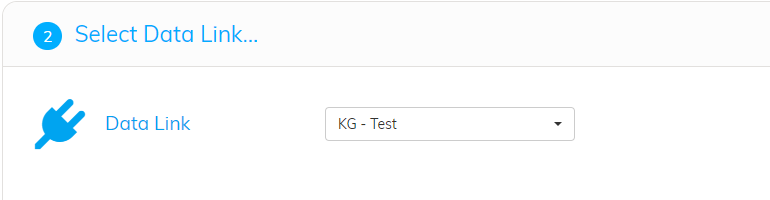
On step 2 of the wizard, select the data link you wish to pull data and click 'Next':
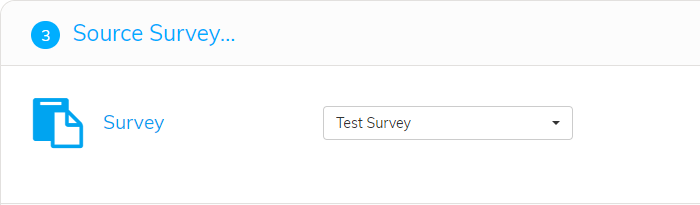
On step 3 of the wizard, select the survey you wish to import into Codeit and click 'Next':
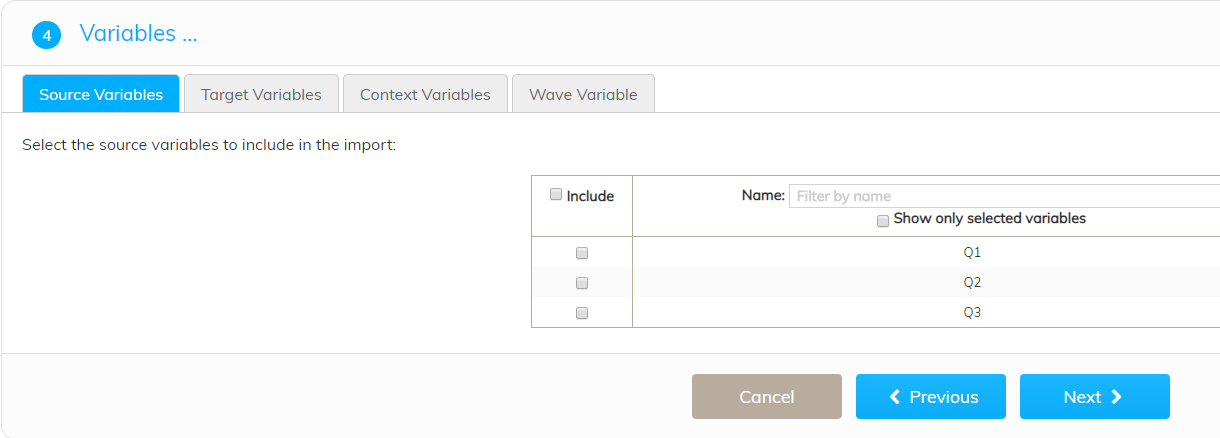
On step 4 of the wizard, select the Source verbatims and Target data variables you wish to include in the project. You may also optionally select context and wave variables. Click 'Next' when you've selected all variables you wish to include.
Select the Source verbatim variables.
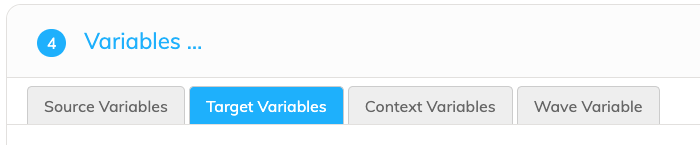
Next, select the Target Variables tab and "Create target variables"

Select Auto Generate Variables
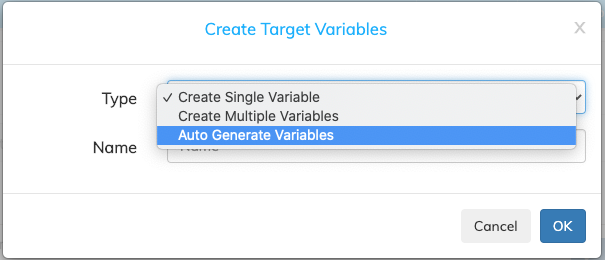
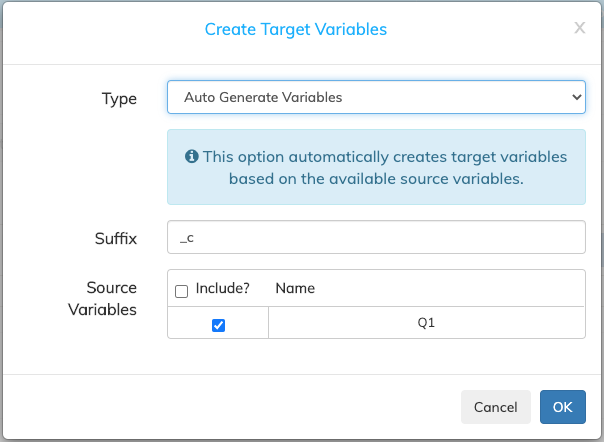
By default, Codeit creates the Target data variables as "Source_c" - Q1_c, Q2_c. You may use your own suffix in the below dialog. Click "OK".
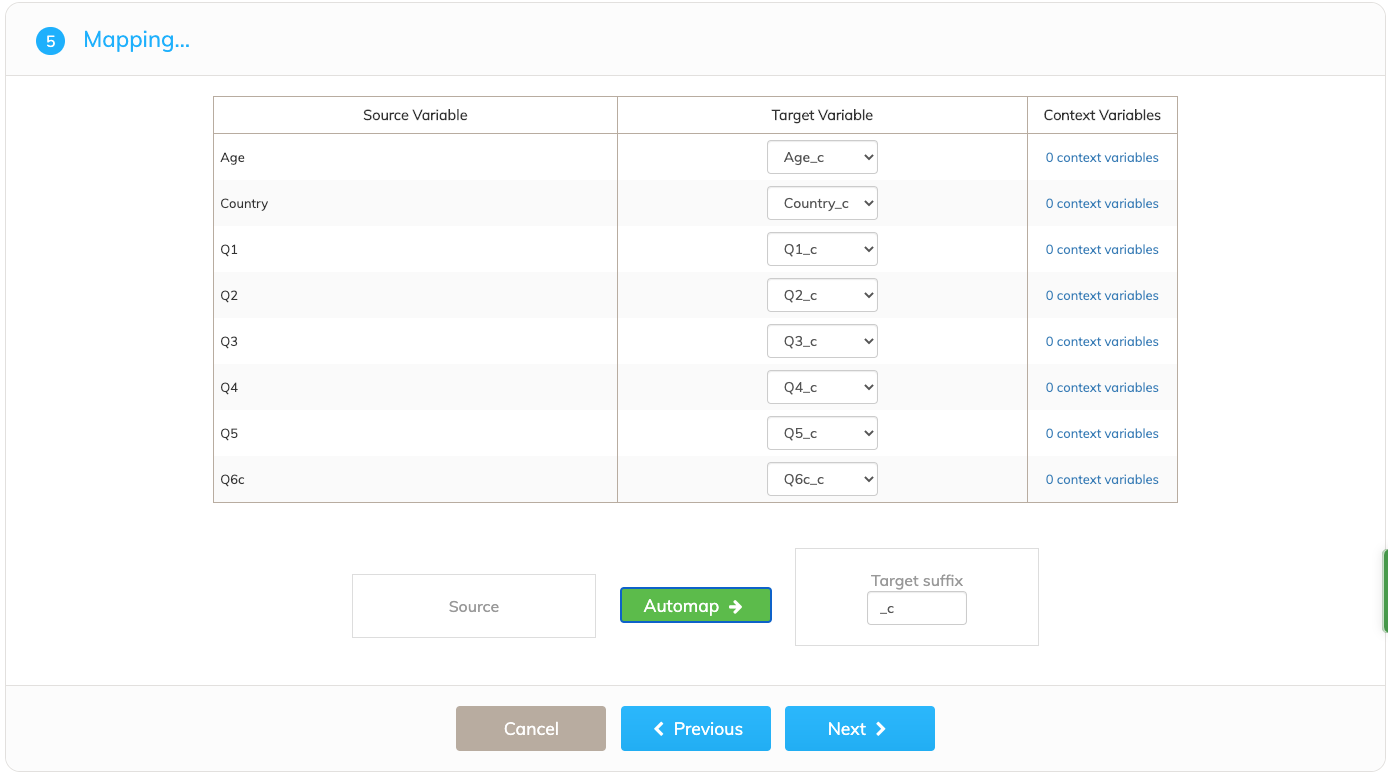
On step 5 of the wizard, Automap the Source verbatims to the Target data variables, both of which you selected earlier. Click on the green "Automap ->" button then, click 'Next'.
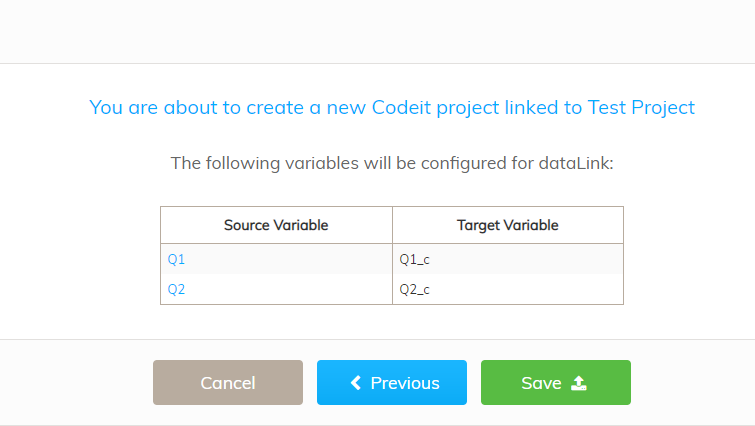
On step 6 of the wizard, you are given a summary of the project you are about to create. If you are happy to proceed, click 'Save'. If not, click 'Previous' to go back and amend your settings.
When the project has been created successfully, you will see the following screen:

Click 'OK' to go back to the Project Dashboard and begin coding on your newly imported project.
If you do not see the above screen after completing the wizard, please contact us.