Block Coding - Page Anatomy/Menus
Introduction
This page provides a basic orientation to the Block Coding screen in Codeit.
Please review: Concurrent Access to Block Coding
Block Coding screen
The Block Coding page in Codeit appears as follows:
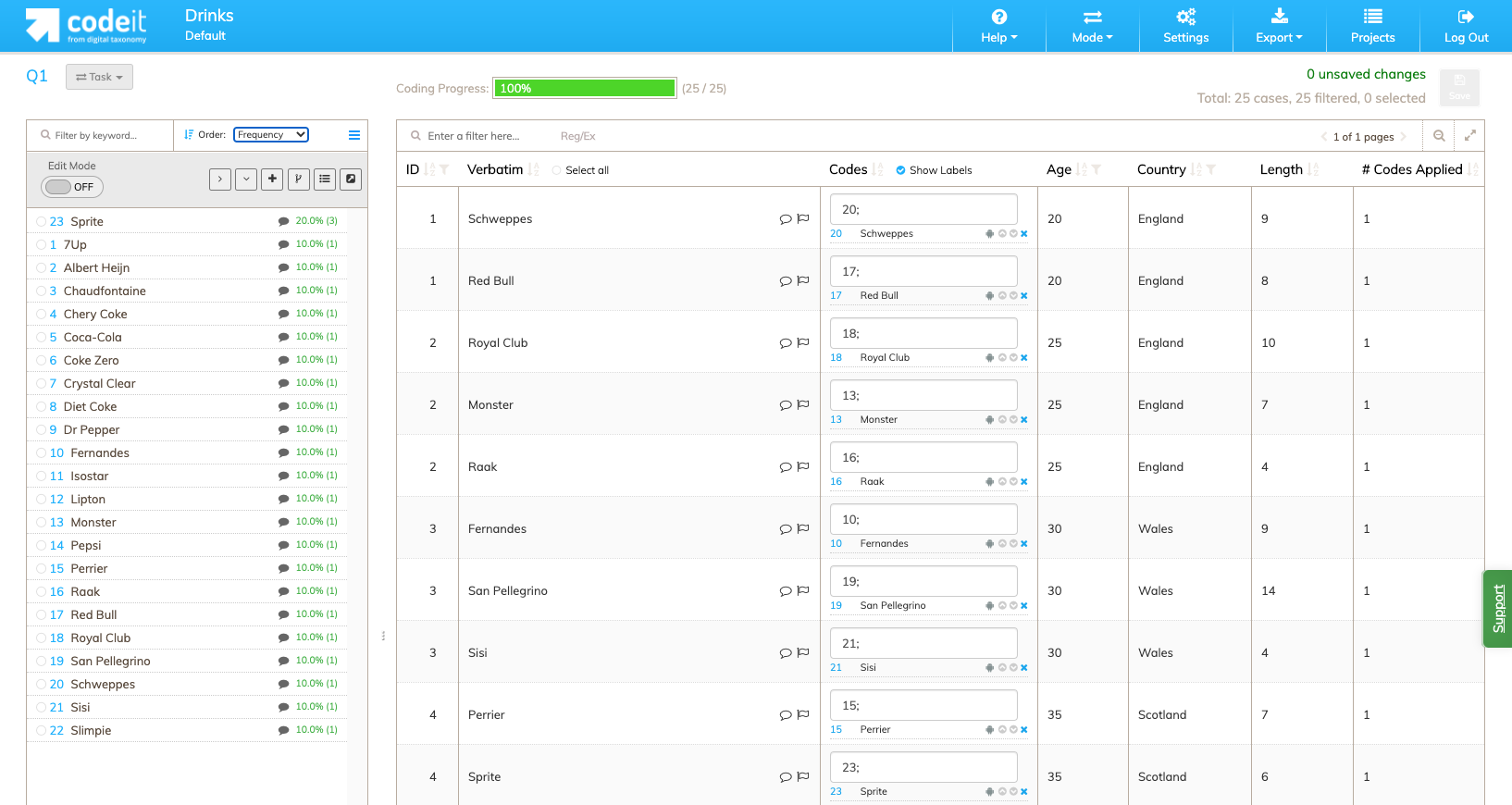
The purpose of each of these sections is as follows:
| Section | Description |
|---|---|
| Codeframe | Displays the current codeframe. The codeframe functions in exactly the same way as it does in each of the coding screens. It can also be edited and manipulated in exactly the same way as in each of the coding screens. For more information on working with code frames, see the Working With Codeframes page. |
| Verbatim | Displays a list of source verbatims for coding. |
| Codes | Shows the codes applied to each text item. The codes applied to each record can be edited by typing in the corresponding textbox. This is identical to the method used to apply codes in each of the coding screens. |
| Context Variables | Shows additional related values to help add context to each text item or to use as FIlters. |
| Length | Shows the number of characters in each text item, including spaces. |
| # Codes Applied | The number of codes currently applied to each verbatim. |
Block Coding Codeframe Options
Right-Click on any code category to view the menu options available.

| Code Value and Code Label | Current code value and code category label. |
| Set Item Description | Add a mode detailed description for the code category. Item Descriptions will display "on hover" over the icon next to the code label or open when selected. |
| Show Suggestions |
Codeit suggestions can be created in several ways. Text Matching, Text Match Rules, AI machine learning. The text within the verbatim containing the suggestion is highlighted. |
| Show Suggest As | Display any verbatims containing suggestions for the selected code category. |
| Show Not Suggested As | Display any verbatims not containing suggestions for the selected code category. |
| Show Coded As | Display any verbatims where the selected code category is applied. |
| Show Not Coded As | Display any verbatims where the selected code category is not applied. |
| Show [Code Category Name] Coded by AI | Display verbatims containing codes applied by specific auto code methods. Text Matching, Text Match Rules, AI machine learning. Verbatims coded ONLY with manual coding will not be displayed. |
| Show All Layers | Display any verbatims coded by any of the auto code methods for the selected code category. |
| Filter by Text Rules | Display any verbatims coded by Text Match Rules for the selected code category. |
| Filter by Text Matching | Display any verbatims coded by Text Matching for the selected code category. |
| Filter by Machine Learning | Display any verbatims coded by AI machine learning for the selected code category. |
| Filter Text Match Rules | Display verbatims and highlight Text Match Rule phrases for the selected code category. |
| Apply Text Rules | Apply the selected code category to any verbatims containing phrases found by the Text Match Rules. |
| Edit Text Match Rules | Edit the Text Match Rules for the selected code category. |
| Add New Item Before [Code Category Name] | Insert a single new code frame category above the selected code category. |
| Add Multiple Items | Open a dialog where multiple new code categories can be entered or pasted from the clipboard. |
| Apply Text Rules (all) | Apply ALL code frame categories where a Text Match Rule finds phrases in ANY verbatims - NOT just the selected code category. |
| Apply Text Matching | Apply ALL code frame categories where a Text Matching finds ANY verbatims - NOT just the selected code category. |
| Show Coded | Display all verbatims with one or more code categories applied. |
| Show Uncoded | Display all verbatims with no codes applied |
| Show All Coded by AI | |
| Show All Layers |
Display ANY verbatims coded by any of the auto code methods. |
| Filter by Text Rules |
Display ANY verbatims coded by any Text Match Rule. |
| Filter by Text Matching |
Display ANY verbatims coded by any Text Matching. |
| Filter by Machine Learning |
Display ANY verbatims coded by any AI machine learning. |