Displaying Relative Context Variables
Introduction
When adding context variables to a task in Codeit sometimes it makes sense to restrict the display only to items that are relative to the verbatim being coded.
This document explains the concept of context variable display relativity, why you might need it and how to apply it to your tasks in Codeit.
How to set display relativity
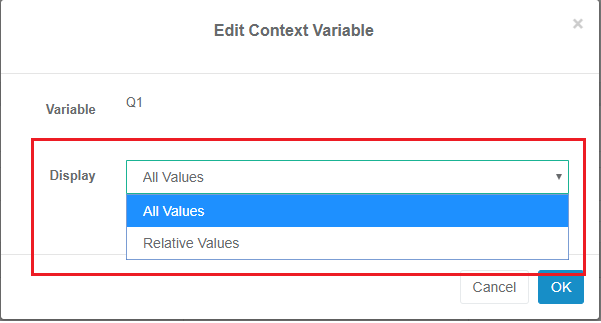
When creating or editing the context variables within a task, the display relativity is set using the "Display" dropdown:
When creating or editing the context variables within a task, the display relativity is set using the "Display" dropdown:
When would you need display relativity?
Consider the following questionnaire:
Q1. What is your age?
Q2. "What types of animal can you think of?"
Q3. <for each animal mentioned in Q2> "What do you like most about <animal>?"
From this questionnaire, we might collect the following data:
| RID | Q1 | Q2_1 | Q2_2 | Q2_3 | Q3_1 | Q3_2 | Q3_3 |
|---|---|---|---|---|---|---|---|
| 1 | 32 | Dog | Cat | Rabbit | They are loyal and fun | They are cute | They are soft |
| 2 | 25 | Goldfish | Dog | They are relaxing | Man's best friend! | ||
| 3 | 61 | Hamster | Easy to look after |
If you were setting up a task to code Q2, then you might want to include Q1 (Age) as a context variable.
As there is no association between Q1 and Q2 there is no need to make the display of Q1 relative to the Q2 value.
So, in this case you would use the default "All Values" display setting.
This would result in the following display in Codeit:
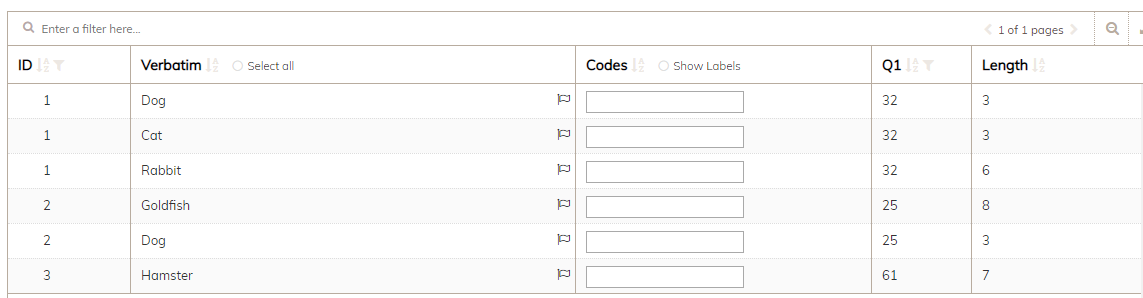
Note that in this case, the values displayed in the Q1 column are simply whatever values exist in the Q1 variable for that record.
This also means that the same values are repeated in each row for the same source record (e.g. "32" appears for all records where RID = 1).
Suppose that we also want to code Q3, using Q2 as a context variable. The default "All Values" relativity setting will result in this display:
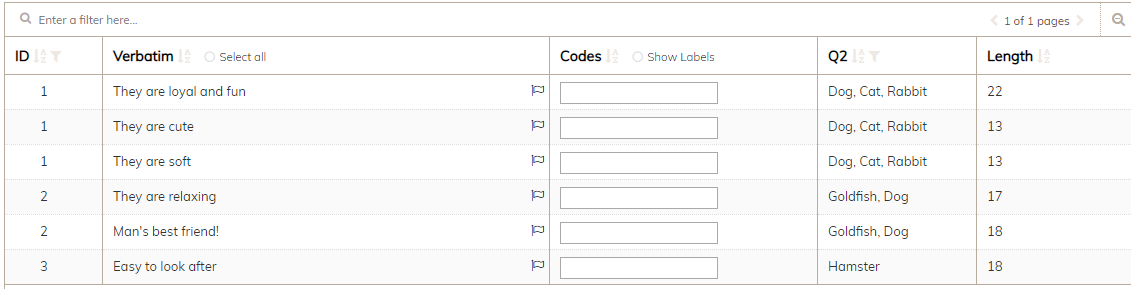
Note, again, the "All Values" setting displays all the values that exist in the Q2 variable for each record.
However, in this case, it is unlikely to be what we want. It's more likely that the context information we need in Q2 is the animal to which the verbatim on that row is referring to.
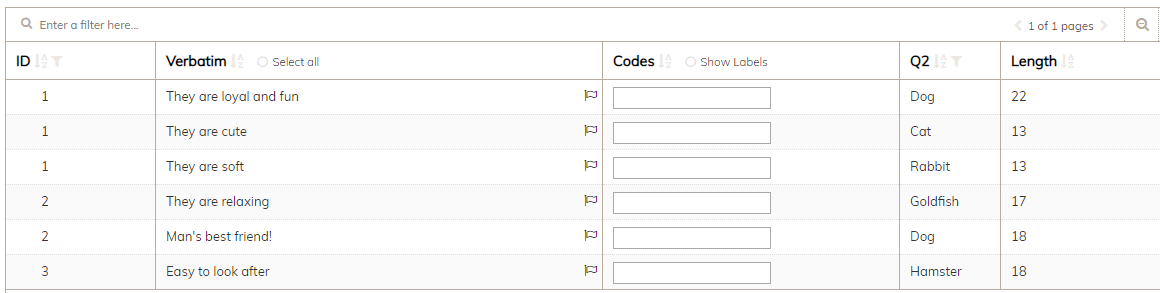
We can achieve the desired layout by using the "Relative Values" display setting instead:
However, in this case, it is unlikely to be what we want. It's more likely that the context information we need in Q2 is the animal to which the verbatim on that row is referring to.
We can achieve the desired layout by using the "Relative Values" display setting instead: